
Getting Started
Since v2.0.0Command Palette
The command palette runs every app action, jumps to projects, collections, bookmarks and saved queries, generates IDs, opens fuego:// and Firebase console links, and hands off to global search when what you typed is data, not a command.
Open it
Press ⌘ ⇧ P on macOS, Ctrl ⇧ P on Windows and Linux. The palette opens over whatever you were doing; Esc closes it.
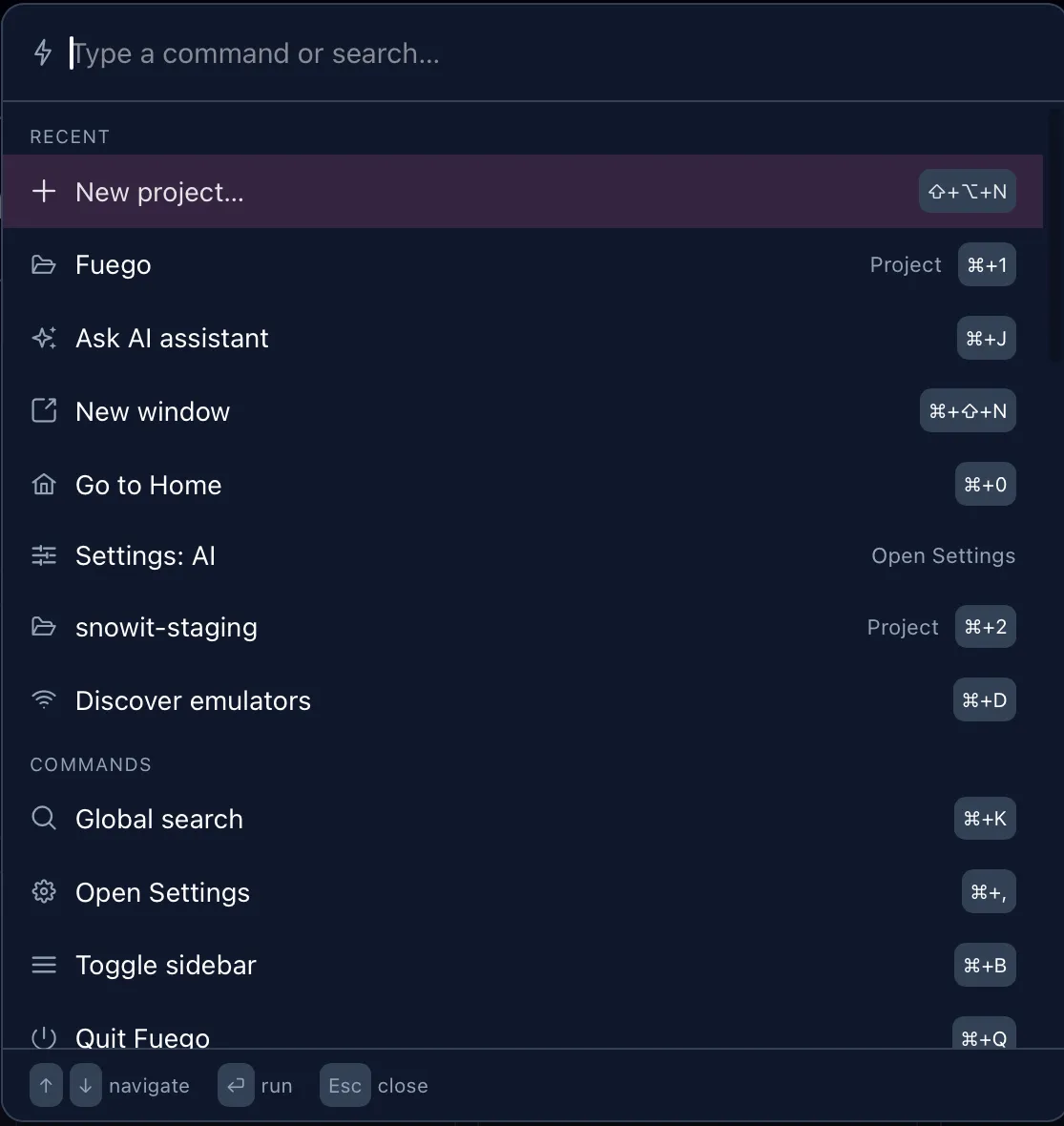
The shortcut is configurable. In Settings → Command palette shortcut pick between ⌘ ⇧ P, ⌘ P, ⌘ ⇧ K and ⌘ J. Choosing ⌘ J takes the shortcut normally used by Ask AI, which then stays available from the menu.
How it works
With an empty input the palette shows your Recent commands first, then everything else grouped:
| Group | What it holds |
|---|---|
| Recent | What you ran last, so repeat actions are one keystroke away |
| Commands | Actions — the same things the menus do |
| Go to | Navigation targets: projects, collections, bookmarks, saved queries |
| Utilities | Generators and helpers that put their result in the clipboard |
Start typing and the list becomes a single ranked result set. Matching is
fuzzy — nwp finds New project… — and it also matches each command’s
keywords, so “advisor”, “optimize” and “analyze” all find the Index
Advisor. Commands you use often float to the top.
| Key | Action |
|---|---|
| ↑ ↓ | Move through the results |
| ⏎ | Run the selected entry |
| Esc | Close the palette |
Commands that need something from you — a collection path, a value for a saved query placeholder — ask for it after you pick them.
What is inside
The palette is assembled from the context you are in, so the list is never the same twice. What you can expect to find:
Navigation and windows — Go to Home, New window, open the current view in another window, toggle the sidebar, zoom in/out, reload the window.
Projects — New project…, Add workspace…, project settings, copy the Firebase project ID, reload collections, switch database, List indexes, Index Advisor, discover emulators.
Explorer — close/next/previous tab, toggle the query panel, clear the document selection, enable or disable realtime, open saved queries.
Users and storage — export/import users, add a user, revoke refresh tokens
(all or selected), copy a UID or email, switch tenant, copy a gs:// URI.
Settings — open settings, or jump straight to a section: Theme, General, AI, Synchronization, Language & formats, License, Invoice & payment.
App — background activities, check for updates, about/version, send feedback, sync all projects or just the current one, start or stop the MCP server and copy its connection snippet, open the documentation or the changelog, contact support, quit.
Utilities — generate a UUID, UUID v7, short UUID, NanoID, KSUID, a Firestore ID or a random number. The result goes straight to the clipboard, which is handy when you are creating a document by hand.
Go to
The Go to group is a jump list built from what you actually have: projects, emulators, collections of the current project, bookmarks, saved queries, dashboard and explorer workspaces, the Users and Storage sections, and buckets. Type a fragment of the name and press ⏎.
Links
Paste a fuego:// link into the palette and the bottom row offers to open
it — a document, a collection, a query, a Storage file or a user, straight to
the right place in the app.
Paste a Firebase console URL and Fuego offers to open the corresponding resource in Fuego instead, provided the project is configured.
Going the other way, the palette can copy a fuego:// link for the current
collection, query, Storage file or user, and open the Firebase console on
what you are looking at.
When it is not a command
If what you typed matches no command, the last row of the palette offers to search it in your data — the query is handed off to Global Search, which looks through Firestore documents, Auth users, Storage paths and your saved queries.
So you never have to decide up front whether what you have in mind is a command or a value: type it, and pick the row that fits.