
Advanced Features
Since v2.0.0AI Assistant
The AI assistant knows which project, database and collection you are looking at, runs read tools against your data, and answers with schema, query, document and widget cards you can apply with one click.
What it is
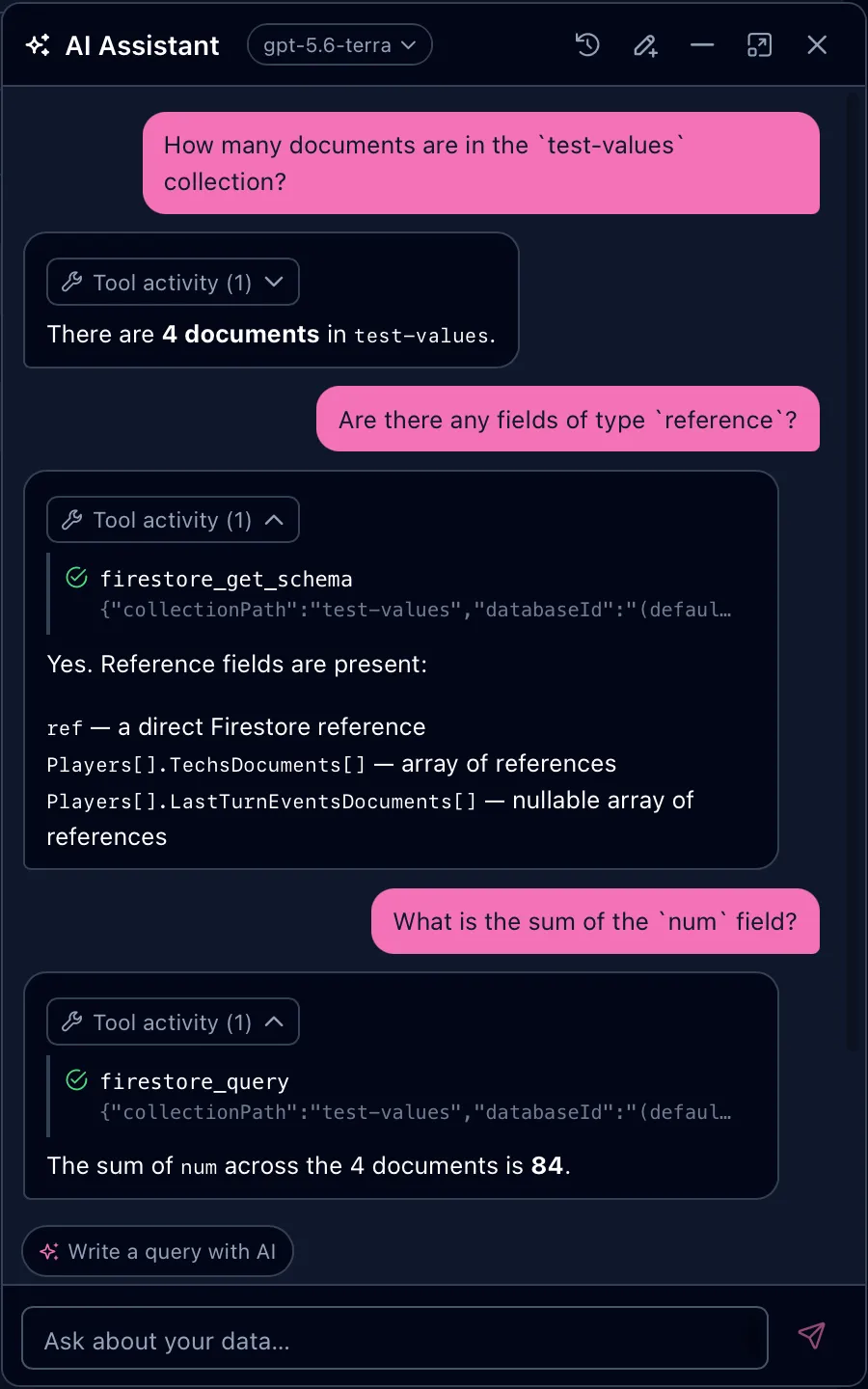
Fuego ships a conversational assistant that works on your actual data. It is not a chat window bolted onto the app: it knows where you are, it can list collections, infer schemas, count documents and run queries, and it answers with cards you can apply — a query you can load into the builder, a schema you can push into the editor, a widget you can add to a dashboard.
Set up a provider
The assistant needs a chat model. Configure one in Settings → AI → AI Providers. Fuego supports:
| Provider | Notes |
|---|---|
| Google Gemini | API key |
| Google Vertex AI | Google Cloud project ID and location |
| OpenAI | API key |
| OpenAI-compatible | Any endpoint that speaks the OpenAI API |
| Anthropic | API key |
| Ollama | Local endpoint — nothing leaves your machine |
| OpenRouter | API key |
| Mistral | API key |
| Cohere | API key |
| xAI | API key |
| DeepSeek | API key |
Every provider accepts custom model names, so a model released after your Fuego build is still usable — type its name in the model picker.
A provider with no chat model configured cannot drive the assistant. If the chat shows “No AI provider with chat models is configured”, open Settings → AI and add a chat model to the provider.
The provider and model in use are shown as a badge in the assistant’s title bar; click it to switch. The choice is remembered per conversation.
Opening the assistant
- the ✨ button in the topbar
- ⌘ J / Ctrl J
- the command palette → Ask AI assistant
- the contextual Ask AI buttons in the query panel, the JSON Schema editor, the Index Advisor and the pipeline literals editor
The assistant opens as a floating window: drag it by the title bar, resize it from the edges, maximize it, or collapse it to a pill that stays out of the way. Position and size are remembered.
The title bar also holds the conversation history, rename, new conversation and delete actions. Conversations are stored locally, and their events and artifacts are encrypted at rest — tool results contain real data from your database.
It knows where you are
Every message carries a snapshot of your current position — project, database, collection — plus whatever the open panels contribute: the query you are building, the schema you are editing, the documents in the literals editor, the indexes the advisor is looking at.
That is what makes “how many documents match this query?” or “improve this schema” work with no copy-pasting.
The same context drives the suggested prompts above the input, which change with the view — “Write a query with AI” in the explorer, “Suggest indexes for this query” in the Index Advisor, “Generate documents with AI” in the literals editor.
Answers you can act on
Under each answer, Tool activity shows exactly which tools ran and with
which arguments — firestore_get_schema, firestore_query, and so on. Expand
it when you want to know how the assistant reached its conclusion.
Instead of dumping JSON into the chat, the assistant delivers typed cards:
| Card | What you can do with it |
|---|---|
| JSON proposal | Copy, Diff against the current content, or Apply into the schema or document editor |
| Query proposal | Run in explorer, or Load into builder to keep editing it |
| Query results | The query was actually run — filter the rows, copy them, or open them in the explorer |
| Sample documents | Use documents pushes generated seed data into the literals editor |
| Dashboard widget | Add to dashboard… saves a ready-made widget to a dashboard workspace |
| Question | When something is missing, the assistant asks instead of guessing, with one-click answer options |
Behind some of these there are specialists the assistant calls on its own: a JSON Schema improver, an index suggester, and a sample-document generator.
Safety and data access
Two settings sections control what the assistant may do.
Data access (Settings → AI → Data access)
These rules apply to both the in-app assistant and the MCP clients connected to Fuego’s MCP server:
- Which projects and databases the AI can reach — all of them, or an explicit list. With nothing selected, every AI request is refused.
- Write access — do not allow writes, allow writes only on non-production projects (the default), or allow write operations.
AI assistant safety (Settings → AI)
- Let the assistant write — off by default. When on, the assistant can create, update and delete data, never on projects flagged as production, and always within the access rules above. Every single write or delete is confirmed in the chat, one call at a time, and that cannot be turned off.
- Confirm acting elsewhere — ask before the assistant works on a project, database, tenant or collection other than the one you are looking at.
- Confirm applying cards — ask before a proposal replaces an editor’s content or a widget is saved to a dashboard.
- Confirm sending data to the provider — warn the first time real data (documents, user accounts, file contents) would leave for the AI provider in a conversation. Self-hosted providers (Ollama) are labelled as such.
Answering questions about your data means sending parts of that data to the configured model provider. If that is not acceptable for a given project, either restrict the project scope under Data access, or use a local provider such as Ollama.
Send anonymized data instead
When real data would leave for the provider, the confirmation shows the exact payload with an Anonymized tab next to it. Send anonymized forwards the masked version, and the provider receives exactly what you saw — useful when you want an answer about the shape of your data without exposing its values. See Anonymization for the masking policy.
Pipelines and the assistant
On a database that supports pipeline queries, the assistant prefers them when they are the better fit — computed fields, grouping, case-insensitive matching — and ships with a bundled skill for writing them correctly.
Bring your own agent
The same tool registry that powers the assistant — 40 tools, 23 read and 17 write, covering Firestore documents and queries, indexes, Firebase Authentication users, Storage, bookmarks, background jobs and exports — is exposed over the Model Context Protocol, so Claude, Cursor or any MCP client can drive Fuego directly. Enable the server in Settings → AI → MCP Server; the project scope and write access are the ones set in Data access.
Anonymize tool results in the same panel masks every document a client receives, according to your anonymization policy. Clients can ask for masking per call, but can never disable it.
Each client gets the newest protocol revision it supports, and older clients keep working unchanged. If one refuses to connect, turn on Compatibility mode for older clients in the same panel and reconnect.
Related
- Anonymization — mask personal data before it reaches the provider
- Index Advisor — deterministic index analysis, with an Ask AI shortcut
- Query pipelines
- Command palette
- Dashboards