
Advanced Features
Since v2.2.0Command line
Fuego 2.2 adds a fuego command: the same app, the same projects, license and settings, usable from a terminal with or without the desktop app open. Documents, queries, exports and imports, Authentication users, fuego:// links, the MCP server and the AI assistant, with JSON output and exit codes made for scripts.
What it is
fuego is Fuego from a terminal. It is the same application, started with a
command instead of a double-click, so it uses the projects, credentials,
license and settings you already configured in the app — there is nothing to
sign in to twice, and a project that is read-only or marked as production in
Fuego stays that way on the command line.
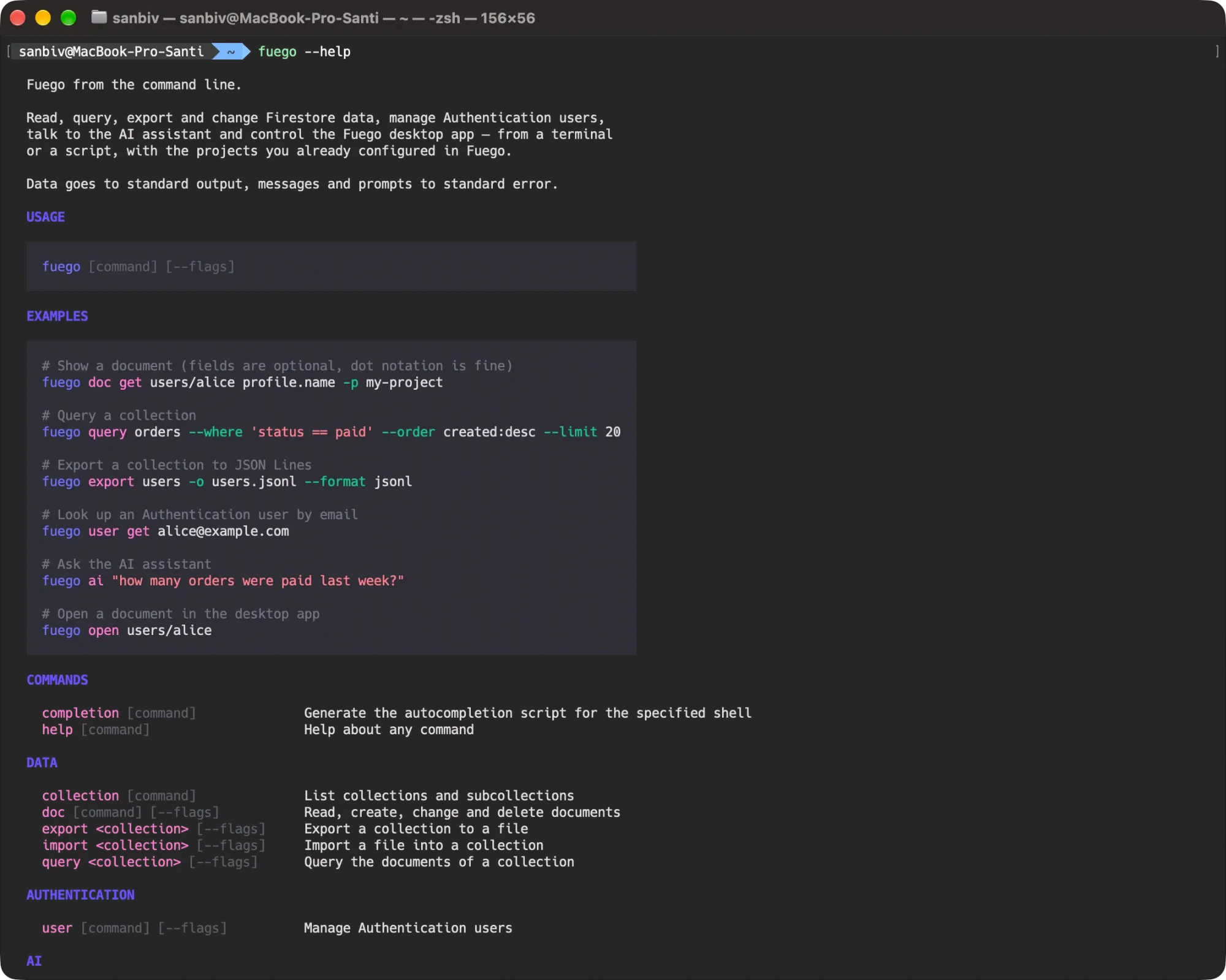
It works with or without the desktop app open. Reading and writing documents, queries, exports, imports and Authentication users run on their own. A few commands talk to the running app — opening a resource in a window, controlling the MCP server built into Fuego — and start the app when it is not running.
fuego doc get users/alice profile.name -p my-project
fuego query orders --where 'status == paid' --order created:desc --limit 20
fuego user get alice@example.com
fuego ai "how many orders were paid last week?"
fuego open users/alice
Install
Choose Help ▸ Install Command Line Tool… in the app menu. The item disappears once the command is installed. The Home page offers the same Install button in a banner, shown until the command is installed or you choose Don’t show again.
- macOS and Linux — a
fuegosymlink to the Fuego executable, placed in the first writable of/usr/local/bin,/opt/homebrew/bin(when it exists) and~/.local/bin. When none is writable the app asks for an administrator password and uses/usr/local/bin.~/.local/binmay need a line in your shell profile to be on thePATH;fuego cli statustells you. - Windows — a small
fuego.cmdin theWindowsAppsfolder of your local application data (already on every user’sPATH), or in%LOCALAPPDATA%\Programs\Fuego\bin, which is then added to your userPATH. Open a new terminal afterwards.
The same thing is available as a command, useful on a machine you reach over SSH or in a setup script:
fuego cli status               # installed? where? on the PATH?
fuego cli install              # --dir to pick the folder, --force to replace another fuego
fuego cli uninstall
From a terminal cli install never asks for a password: when no folder is
writable it prints the sudo line to run instead.
fuego and Fuego. The application binary is Fuego (Fuego.exe on
Windows); the command is the lowercase fuego link. The name decides what the
process does: typing fuego … never opens a window, and double-clicking the
app, or opening a fuego:// link or a .fuego file from the desktop, never
opens a terminal. Running fuego with no arguments prints the help.
Development builds of Fuego keep their data in a separate configuration folder
(fuego version shows which one) and fuego cli install refuses to link them
unless you pass --force.
First steps
fuego project list
fuego project get shop-prod
fuego project databases shop-prod
Projects are added and edited in the app; the command line uses them as they
are. project list shows each project with its Firebase project id, how it
signs in, its databases and a Status column carrying the markers set in
Fuego — production, read-only, emulator — plus disabled for a project beyond
your plan’s limit. Every other command takes the project from, in this order:
-p/--project— a label, a Firebase project id,emulator:<id>or thehost:portof a running Firebase emulator;- the
FUEGO_PROJECTenvironment variable; - the default saved with
fuego config set project <ref>; - the only configured project, when there is just one;
- when you are at a terminal and Fuego is open, the project currently
selected in Fuego — the command says so:
Using project Shop (current in Fuego).
Otherwise the command stops and lists the configured projects. The database
follows the same idea: -d / --database, then FUEGO_DATABASE, then
fuego config set database, then the database open in Fuego when Fuego is on
that same project, then (default).
fuego config set project shop-prod
fuego config set database analytics
fuego config get
fuego config unset database
Emulator projects appear in project list only while Fuego is running and has
found them; from the command line you can always refer to an emulator by its
host:port, for example -p 127.0.0.1:8080.
Reading data
A document
fuego doc get users/alice                       # a readable tree
fuego doc get users/alice profile.name email    # only these fields
fuego doc get users/alice email                 # one field: prints just the value
fuego doc get users/alice --json | jq .age
fuego doc get users/alice --at 2026-09-01T10:00:00Z
Paths are relative to the database root — users/alice,
users/alice/orders/42 — and fields use dot notation. Only the fields you name
are read from Firestore. --at shows the document as it was at a past moment,
within the database’s point-in-time recovery window. A document
that does not exist ends with exit code 3.
Without --json the document is printed as a short header — the id, the path,
when it was created, updated and read, its size — followed by a tree of the
fields, with timestamps, references, geopoints and bytes shown as the values
they are rather than as nested objects. What Fuego notes for itself while the
app is open, such as whether a document is being edited, is never shown as a
row: those keys only exist in the --json form, and doc set ignores them.
--json prints the document in the Fuego wire form: timestamps as
{"__time__": …}, references as {"__ref__": …}, geopoints as
{"__lat__": …, "__lng__": …}, bytes as {"__bytes__": …}. It is the form
doc set and doc create accept back unchanged, so a document can be copied
from one place to another without losing types. --simple prints a readable
JSON where those become plain strings — easier to read, not round-trippable —
and cannot be combined with --json.
Ids and collections
fuego doc list users                            # ids only, one per line, 100 per page
fuego doc list users --limit 500 --page-token "$TOKEN"
fuego collection list                           # root collections
fuego collection list users/alice               # subcollections of a document
fuego col list --refresh --json                 # read the list from Firestore again
doc list prints ids without reading the documents, including the ids of
documents that only exist as parents of subcollections. When a page is not the
last, the token for the next one is printed on standard error (and in
nextPageToken with --json).
Queries
fuego query orders --where 'status == paid' --order created:desc --limit 20
fuego query users --where 'age >= 18' --where 'country in ["IT","FR"]' --select name,email
fuego query orders --group --where 'total > 100' --count
fuego query users --jsonl | jq -c 'select(.age > 30)'
Each --where is one condition, all combined with AND, written as
'field op value' or, for the comparisons, as field=value (==),
field!=value, field<value, field<=value, field>value, field>=value.
The operators are the ones of the query builder:
| Operator | Example |
|---|---|
== != < <= > >= | 'age > 18', 'name == "Ann Lee"' |
in not-in | 'role in ["admin","staff"]' |
array-contains | 'tags array-contains go' |
array-contains-any | 'tags array-contains-any ["go","rust"]' |
starts-with | 'name starts-with Jo' |
between | 'age between [18,30]' |
Values are read the way --set values are: valid JSON is JSON
(18, true, "quoted text", [1,2]), 10.5 is a double, anything else is
a string, and the ts:, ref:, geo:, bytes: and str: prefixes force a
type — 'createdAt > ts:2026-01-01', 'owner == ref:users/alice'.
--order field,field:descor-field, repeatable.--select name,emailreads only those fields.--offsetskips documents.--limitis how many documents come back. Leave it out and you get 50; give it a number and that is what you get, up to 500 — a larger number is cut to 500 with a warning on standard error, and0or a negative number is refused with exit code2rather than quietly becoming the default, so a script that computes a wrong limit finds out.--groupqueries every collection with that id (a collection group).--countprints only how many documents match ({"count": n}with--json); without--limitit counts them all, not just the first 50.- Without
--jsonthe result is a table: the id, then the fields that fit the width of the terminal — plain values (text, numbers, booleans, timestamps, references) before maps and arrays, long cells cut with an ellipsis. When fields are left out, a note on standard error says how many: pick them with--select, or use--jsonfor everything. --jsonprints{"docs": […], "count": n, "truncated": true|false, "mode": "classic"}("pipeline"for a pipeline query);--jsonlstreams one document per line, ready forjqor a file. When more documents match than came back,truncatedistrueand a note on standard error suggests a larger--limit; for the full set usefuego export. Two output shapes at once —--json --jsonl,--count --jsonl— are refused with exit code2.--querytakes a whole query as JSON, in the form Fuego saves and exports (filters, orders, selection, limit, offset, or the pipeline stages of an Enterprise edition database); the other flags are added on top of it, and a limit inside it is kept unless--limitis given. A pipeline query takes--limitas its row cap and no other flag.
Changing data
Create, set, update
fuego doc create users --id alice --data '{"name": "Alice", "age": 36}'
fuego doc create users -f alice.json              # id chosen by Firestore
cat alice.json | fuego doc create users           # the JSON piped in

fuego doc set users/alice --data '{"name": "Alice", "age": 37}'   # replaces the document
fuego doc set users/alice --merge --data '{"age": 37}'            # keeps the other fields
fuego doc set users/alice -f alice.json --no-create               # fails when missing

fuego doc update users/alice --set age=37 --set profile.city=Milan
fuego doc update users/alice --set lastSeen=ts:now --unset legacyField
fuego doc update users/alice --data '{"tags": ["a", "b"]}'
The document comes from --data, from a file with -f (-f - for standard
input), or from whatever is piped in. doc create fails when --id names a
document that already exists and prints the created path. doc set replaces
the stored document unless --merge is given, and creates a missing one unless
--no-create is. doc update changes only the fields you name and requires
the document to exist. Metadata keys pasted from a doc get --json output
(__path__, __create_time__, …) are ignored, so a document can be copied
with doc get --json | doc set.
Values
A value after --set (and in --where) is read as JSON when it is valid JSON,
and as a string otherwise: age=37 stores the integer 37, city=Milan the
string Milan, tags='["a","b"]' an array, active=true a boolean,
note=null a null. Numbers: a whole literal is stored as an integer, a
literal with a fraction or an exponent (10.0, 1e3) as a double. Five
prefixes force a type when the text alone would be read differently:
| Prefix | Example | Stored as |
|---|---|---|
ts: | ts:2026-01-31T12:00:00Z, ts:2026-01-31, ts:now | timestamp |
ref: | ref:users/bob | document reference |
geo: | geo:45.46,9.19 | geopoint (latitude, longitude) |
bytes: | bytes:SGVsbG8= | bytes (base64) |
str: | str:018, str:true | the string, verbatim |
Inside a JSON document (--data, -f) the same types are written in the wire
form: {"__double__": 10} for a double, {"__time__": "2026-01-01T00:00:00Z"}
for a timestamp, {"__ref__": "users/bob"} for a reference,
{"__lat__": 45.46, "__lng__": 9.19} for a geopoint and
{"__bytes__": "SGVsbG8="} for bytes.
Delete
fuego doc delete users/alice
fuego doc delete users/alice -r -y                  # subcollections too, no questions
fuego doc delete users/alice --no-recursive --json  # keep the subcollections
doc delete lists the document’s subcollections first. With -r /
--recursive they are deleted too; with --no-recursive they are kept
(Firestore leaves them reachable under the deleted document); with neither
flag you are asked, and the default answer is yes. The deletion is then
confirmed unless -y / --yes is given, and a line saying what is being
deleted, in which project, is always printed on standard error. A document
that does not exist ends with exit code 3 before anything is asked.
Deleting subcollections runs as a job whose counts are reported at the end.
Without a terminal — in a script, in CI — the subcollection question is not
asked and the subcollections are deleted. Pass --no-recursive when a
script must keep them. The confirmation itself is different: without a
terminal it stops the command with exit code 4 until you pass --yes.
Export and import
fuego export users -o users.jsonl
fuego export orders -o paid.csv --format csv --where 'status == paid'
fuego export comments -o all-comments.json --format json --group

fuego import users -f users.jsonl --dry-run
fuego import users -f users.jsonl
fuego import products -f catalog.csv -y
export writes a collection (or a collection group) with the same defaults as
the app’s export dialog: every field, the document paths and
the create/update times, special values in the wire form so the file can be
imported back unchanged. Formats are json, json-array, jsonl (the
default), csv and yaml; the extension is added when the file name lacks it
and an existing file is overwritten. --where narrows the export with the
syntax of fuego query.
import reads a file — the format follows its extension — with the defaults of
the import dialog: every attribute, documents that do not exist
are created, existing ones are updated field by field, and a document keeps
the id of its __path__ or __name__ field when the file has one. --dry-run
reads the file and reports what the import would do (rows, documents to create
and to update, errors) without writing anything.
Both run as jobs: progress is shown on standard error, and Ctrl+C stops the job before the command exits. The jobs the desktop app runs are shown in the app; the command line has no list of them.
Authentication users
fuego user list --limit 20
fuego user list --all --jsonl > users.jsonl
fuego user list --filter email=alice@example.com --filter provider:google.com=1234567890
fuego user count
fuego user get alice@example.com
fuego user get +14155552671 --json
Every command that takes a <user> accepts a uid, an email address or an
E.164 phone number. When more than one user matches (an email address that is
also somebody’s uid) the command stops and lists them: pass the uid instead.
user list pages with --limit and --page-token, or follows the pages to
the end with --all; --filter looks up exact matches instead (email=,
phone=, uid=, provider:<providerId>=<provider uid>, several are OR-ed).
# Create — the password from a secret manager, never on the command line
op read op://vault/alice/password | fuego user create --email alice@example.com --password-stdin
fuego user create --email bob@example.com --display-name "Bob" --email-verified
fuego user create --phone +14155552671

# Change
fuego user update alice@example.com --display-name "Alice Liddell" --email-verified
fuego user update alice@example.com --set-claim role=admin --set-claim level=3
fuego user update alice@example.com --claims '{"role":"viewer"}'     # replaces every claim
fuego user disable alice@example.com
fuego user enable alice@example.com
fuego user revoke alice@example.com          # signs the user out everywhere
fuego user delete alice@example.com          # asks first; -y to skip
Passwords come from --password-stdin (one line of standard input), from
--password (visible to other users and kept in the shell history — a warning
says so) or from a masked prompt when you are at a terminal. --set-claim
merges into the current custom claims (a dotted name sets a nested claim);
--claims replaces the whole object, and {} clears it. Claim values follow
the value rules: role=admin is a string, level=3 a number,
str:018 keeps a string that looks like a number.
# Tokens and links
fuego user token alice@example.com
fuego user token alice@example.com --claims '{"role":"admin"}' --id-token --json
fuego user token alice@example.com --id-token --api-key AIza...
fuego user link alice@example.com --type reset
fuego user link alice@example.com --type signin --url https://app.example.com/finish
fuego user tenants
user token mints a custom token; with --id-token it is exchanged for an ID
token right away, through the project’s Web API key — the one stored in
Fuego for the project, or --api-key — and the ID token, the refresh token and
their lifetime are printed. Emulator projects cannot exchange tokens from here,
and signing needs a credential with a private key (a project using your Google
account may be refused). user link generates the password-reset, email
verification or sign-in link Firebase would send, to deliver it through your
own channel.
Multi-tenant projects (Identity Platform) take --tenant <id> on every user
command; without it the commands work on the project’s default user pool.
Opening things in Fuego
fuego open                                   # bring Fuego to the front, starting it when needed
fuego open users/alice -p my-project         # a document
fuego open users                             # a collection
fuego open comments --group                  # a collection group
fuego open gs://my-project.appspot.com/photos/
fuego open user:8fJk2…                       # an Authentication user (--tenant for a tenant)
fuego open --query '{"collectionPath":"users", ...}'
fuego open fuego://…                         # a link, as it is
fuego open backup.fuego                      # a saved view, query, macro or backup
fuego open users/alice --print               # print the fuego:// link instead
open turns the resource into a fuego:// link
and hands it to the running app — or starts Fuego with it. Firestore paths,
Storage paths, users and queries belong to the project selected with -p (and
-d), like every other command; the link carries the Firebase project id, so
it works on any computer where that project is configured in Fuego.
--print writes the link on standard output instead of opening it, ready to
paste into a ticket, a pull request or a chat message. fuego app is an alias
of fuego open, and a bare fuego fuego://… opens the link too.
MCP
Fuego’s MCP server exposes your Firestore, Authentication and Storage data to AI tools such as Claude Code, Claude Desktop or Cursor, within the project scope and write mode configured in Settings › AI. The command line controls the server built into the app and can also serve the same tools itself.
fuego mcp status        # running? on which port?
fuego mcp start         # start it in the running app (switching it on when needed)
fuego mcp stop          # stop it; it stays enabled in Settings
fuego mcp enable        # switch it on in Settings and start it
fuego mcp disable       # switch it off and stop it
fuego mcp info          # URL, access token and ready-to-paste client snippets
status, start, stop, enable, disable and info talk to the running
Fuego app; when it is not running, status and info still answer from the
saved settings so the snippets can be prepared ahead, and the others end with
exit code 6.
Serving MCP from the terminal
fuego mcp serve runs the server in the terminal process instead, without
the desktop app. By default it talks MCP over standard input and output,
which is how MCP clients start a local server — the client runs the command
itself, on demand, and no token is needed:
claude mcp add fuego -- fuego mcp serve
For config-file clients (Claude Desktop, Cursor, …):
{
  "mcpServers": {
    "fuego": {
      "command": "fuego",
      "args": ["mcp", "serve"]
    }
  }
}
fuego mcp info prints both snippets, plus the ones for the server built into
the app (claude mcp add --transport http fuego http://127.0.0.1:<port>/mcp --header "Authorization: Bearer …", the matching JSON with "type": "http",
and a Codex line when the server is set to accept connections without a
token). When the fuego command is not installed, the snippets use the full
path of the executable.
With --http the same tools are served on an HTTP endpoint bound to this
computer only, protected by an access token created for that run and printed
once on standard error (on standard output as JSON with --json); --port N
picks the port, otherwise a free one is used and printed at start. Fuego’s own
MCP settings are not touched — the app’s port, token and network options stay
as they are — while its project scope, write mode and
anonymization settings apply here too.
fuego mcp serve --http
fuego mcp serve --http --port 43111
AI assistant
fuego ai "how many orders were paid last week?" -p shop
echo "list the collections" | fuego ai --json
fuego ai                                              # interactive chat
fuego ai --conversation 4f2c… "and by country?"      # continue a saved conversation
fuego ai --new "start over, ignore the last one"      # a fresh conversation (the default)
fuego ai "delete the test orders" --approve-tools      # approve every question in advance
fuego ai providers
fuego ai conversations
It is the same assistant as in the app, with the same tools, safety rules and saved conversations. With a message (or one piped on standard input) the reply is streamed to standard output and the command ends; tool steps are shown on standard error. Without a message, at a terminal, an interactive chat opens:
- Enter sends, Shift+Enter (or Alt+Enter, Ctrl+J) adds a line, Esc clears the input, PgUp / PgDn scroll the transcript.
- Ctrl+C stops the answer being written; pressed again, or when nothing is running, it quits.
- Before a tool writes data, sends real data to the provider or acts outside the project you are on, the assistant asks inline: [y]es, [n]o, [a]lways for this conversation, and [z] anonymized where masking is an option. When it needs a choice, press the option’s number or type an answer.
Without a terminal the answer to every one of those confirmations is no,
said out loud on standard error so a log explains the assistant’s reply. To
let it work unattended, pass --approve-tools, which answers yes to every
confirmation before it is asked — use it only when you know what the assistant
is about to do. -y / --yes, which answers the confirmations of the other
commands, deliberately does not approve these: a flag added to skip a
“delete this document?” prompt must never hand the assistant a free pass.
A question the assistant asks you — as opposed to a confirmation — ends the
command with exit code 4 when there is no terminal to answer on, when
--json is in use, or when the question has no ready-made options; at a
terminal you pick one of the options and the conversation goes on.
Writes stay off unless enabled in Fuego › Settings › AI, and a production
project is never written; the command prints the provider, the model and the
write mode on standard error when it starts.
The provider is --provider (by name or id), then FUEGO_AI_PROVIDER, then
the first configured provider that supports tool calling; --model picks the
chat model. With -p / -d (or a saved default project) the assistant starts
scoped to that project and database. --conversation <id> continues a saved
conversation, keeping its provider and model unless the flags say otherwise;
--new starts a fresh one, which is what happens anyway, and the two together
are refused. --json prints the reply, the steps and the artifacts as one
document.
Scripting
- Standard output carries data only — documents, ids, tables, JSON, links,
tokens. Progress, prompts, warnings and errors go to standard error. This
is what makes
fuego … | jqandfuego … > filesafe. --jsonprints results as JSON, and errors as{"error": {"code": "…", "message": "…"}}on standard error.--jsonl(onqueryanduser list) streams one record per line.-y/--yesanswers every confirmation a command asks; without it, a command that must ask and has no terminal stops with exit code4. The one thing it does not cover is the AI assistant’s tool confirmations, which have their own--approve-tools.-q/--quietsilences progress and informational lines;--no-color, orNO_COLORin the environment, drops the colors and keeps bold and underline. Everything is stripped when the output is not a terminal.- Nothing but the command’s own messages reaches standard error: Fuego’s
diagnostic logging is switched off for a command, so one failure is always
one line (or one JSON record). Set
FUEGO_DEBUG=1to see the log lines too when something needs investigating. - Flags that contradict each other are refused with exit code
2rather than one of them being quietly ignored: two output shapes at once (query --json --jsonl,query --count --jsonl,doc get --simple --json), two opposite answers (doc delete -r --no-recursive,user update --claims … --set-claim …,user create --password … --password-stdin,ai --conversation … --new), or a flag that needs another one (user list --filterwith--allor--page-token,user token --api-keywithout--id-token,mcp serve --portwithout--http). - Ctrl+C stops the running job cleanly and exits with
130; a second Ctrl+C exits immediately.
| Exit code | Meaning |
|---|---|
0 | Success |
1 | The command failed for another reason |
2 | Wrong command line: unknown command or flag, missing argument, no project selected |
3 | The document, user or project does not exist |
4 | A confirmation or a choice was needed and there was no terminal: rerun with --yes or the missing flag |
5 | The license or plan does not allow the action (invalid or expired license, machine limit, read-only database, plan feature) |
6 | The command needs the Fuego desktop app and it is not running |
130 | Interrupted with Ctrl+C |
Shell completion is built in:
source <(fuego completion zsh)                       # this session
fuego completion zsh > "${fpath[1]}/_fuego"         # every new zsh session
fuego completion bash > /etc/bash_completion.d/fuego
fuego completion fish > ~/.config/fish/completions/fuego.fish
fuego completion powershell | Out-String | Invoke-Expression
fuego completion <shell> --help has the details for each shell.
Plans
The command line uses the license activated in the app: on the free plan, accept the terms in Fuego once; with a paid license, the command verifies it when it starts (and tells you when the license service cannot be reached). The plan features are the same as in the app:
| Needs | Commands |
|---|---|
| MCP | fuego mcp serve, and the server built into the app that mcp start / mcp enable control |
| Export | fuego export |
| Import | fuego import (the --dry-run preview does not) |
| Point-in-time recovery | fuego doc get --at |
| Multi-tenant | --tenant on the user commands, fuego user tenants |
A command that needs a feature your plan lacks says which one and ends with
exit code 5. Projects beyond the plan’s limit show as disabled in
project list and cannot be used until the plan allows them.
Related
- Windows, links and notifications — the
fuego://linksopenproduces and the.fuegofiles it opens - AI assistant and Anonymization
- Import · Export · Point in Time Recovery
- Firebase Authentication