
Advanced Features
Since v2.0.0Firestore MCP server
Fuego's MCP server gives your AI tool 50 tools for Cloud Firestore, the Realtime Database, Firebase Authentication and Cloud Storage, using the projects you already added to Fuego. Let the AI tool start it with fuego mcp serve, or connect to the server built into the app, and decide which projects it may reach and whether it may write.
What it is
The Model Context Protocol (MCP) is the standard way for AI tools such as Claude Code, Claude Desktop, Cursor and VS Code to use outside tools. Fuego includes an MCP server, so the AI tool you already work with can read and change your Firestore data through Fuego: list collections, infer a schema, run a query, look up an Authentication user, download a Storage file, export a collection.
It works with the projects you already added to Fuego. There are no credentials to copy into the AI tool, and the rules you set in Fuego decide which projects it may reach, whether it may write and whether personal data is masked before the AI tool sees it.
There are two ways to connect:
| Your AI tool starts Fuego | The server built into the app | |
|---|---|---|
| How | The AI tool runs fuego mcp serve when it needs it | Turn it on in Settings ▸ AI ▸ MCP Server and give the AI tool its URL |
| Fuego app open | Not needed | Needed |
| Access token | Not needed | Optional |
| Best for | Claude Code, Claude Desktop, Cursor, VS Code and most other tools | Tools that connect by URL, other devices on your network |
Both offer the same tools and follow the same rules from Settings ▸ AI ▸ Data access.
What you need
- Fuego, on any plan: the MCP server is included in the free plan too, for the one project the free plan allows (emulators need a paid plan). Anonymize tool results needs a paid plan (Individual or Team, including the 14-day free trial, or the Lifetime Deal). See pricing.
- The
fuegocommand, for the first way. Install it from Help ▸ Install Command Line Tool… in Fuego (with the custom title bar, the menus are in the menu button of the toolbar);fuego mcp serveneeds Fuego 2.2 or later. See Command line. - At least one project added to Fuego. Your AI tool works on the projects you added to Fuego.
An unrelated open-source Firestore tool also installs a command called fuego:
the command your AI tool runs must be the one installed by Fuego from Help ▸
Install Command Line Tool….
Run fuego mcp info in a terminal. It prints, ready to paste, the Claude Code
command and the mcpServers JSON for both ways of connecting, and, when no
access token is required, the Codex command for the server built into the
app. The VS Code entries, the --scope user variant and the install links
are on this page only.
Let your AI tool start Fuego
In this setup the AI tool runs fuego mcp serve on demand and talks to it
directly (what MCP directories call a stdio server). Nothing needs to be open
or switched on in Fuego, and no token is involved: only the AI tool that
started the command can talk to it. The Enable MCP server switch in Settings
concerns the server built into the app, not this one.
Claude Code
claude mcp add fuego -- fuego mcp serve
Claude Code registers the server for the current folder. To make it available in every folder:
claude mcp add --scope user fuego -- fuego mcp serve
Claude Desktop
In Claude Desktop, open Settings ▸ Developer ▸ Edit Config and add Fuego to the configuration file, then quit and reopen Claude Desktop:
{
  "mcpServers": {
    "fuego": {
      "command": "fuego",
      "args": ["mcp", "serve"]
    }
  }
}
If the file already has an mcpServers section, add the "fuego" entry inside
it. Claude Desktop does not read the PATH set in your terminal, so if it
reports that it cannot start the server, replace "fuego" with the full path
of the app. On macOS that is:
/Applications/Fuego.app/Contents/MacOS/Fuego
On Windows and Linux, fuego cli status shows it on the Executable line,
or look in the folder where you installed Fuego. On Windows, write every backslash of the path twice inside the JSON ("C:\\...\\Fuego.exe") or use forward slashes ("C:/.../Fuego.exe"): a single backslash makes the file invalid JSON, and Claude Desktop cannot read it.
Cursor
Add Fuego to Cursor
opens Cursor with the server ready to install. To do it by hand, add the same
entry to ~/.cursor/mcp.json (every project) or .cursor/mcp.json (one
project):
{
  "mcpServers": {
    "fuego": {
      "command": "fuego",
      "args": ["mcp", "serve"]
    }
  }
}
VS Code
Add Fuego to VS Code
opens VS Code with the server ready to install. To share it with a project,
create .vscode/mcp.json:
{
  "servers": {
    "fuego": {
      "type": "stdio",
      "command": "fuego",
      "args": ["mcp", "serve"]
    }
  }
}
VS Code uses the key servers, not mcpServers.
Other MCP clients
Any tool that can start a local MCP server works the same way: the command is
fuego and the arguments are mcp and serve.
For a tool that only connects by URL, fuego mcp serve --http serves the same
tools on this computer only, with an access token created for that run and
printed when it starts. Add --port 43111 to choose the port; otherwise a free
one is picked. Fuego’s own MCP settings are not changed.
Connect to the server built into the app
The app can also run the server itself, at a URL on your computer. It runs only while Fuego is open.
- Open Settings ▸ AI ▸ MCP Server and turn on Enable MCP server. Start automatically when Fuego launches brings it back every time you open Fuego.
- Click Show connection info and copy the snippet for your AI tool: Claude Code CLI, JSON configuration (mcpServers) or Codex CLI.
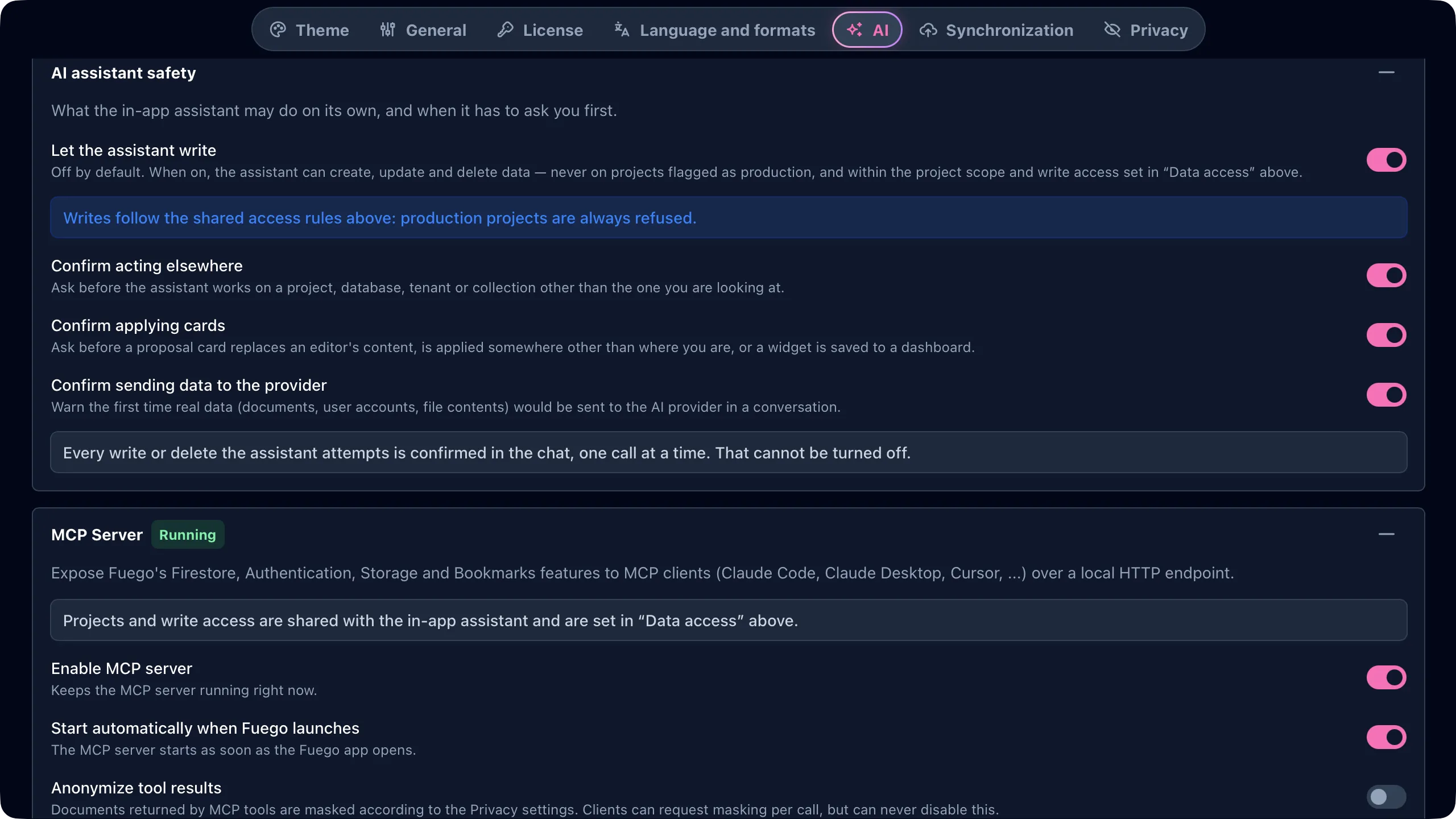
The default address is http://127.0.0.1:43110/mcp, which only programs on this
computer can reach. For Claude Code:
claude mcp add --transport http fuego http://127.0.0.1:43110/mcp
For tools configured with a JSON file:
{
  "mcpServers": {
    "fuego": {
      "type": "http",
      "url": "http://127.0.0.1:43110/mcp"
    }
  }
}
You can also start and stop the server from the AI menu, the command
palette, the MCP server card on the Home page, or a terminal with
fuego mcp start and fuego mcp stop. fuego mcp info prints the URL, the
token and the snippets even while Fuego is closed. If a token is required but has not been created yet, it says so instead: Fuego creates the token when it starts the server.
The same panel has the connection options:
- Port:
43110by default. - Require bearer token: every request must carry the token. The snippets
shown by Fuego and by
fuego mcp infoinclude it. Regenerate replaces it; the new token is shown once. - Serve over HTTPS: with a certificate Fuego creates and renews, or with
your own. Some AI tools only accept
https://addresses; a certificate made by Fuego may need to be trusted in the AI tool first. - Advertise on the local network (mDNS): lets other devices on your network find and reach the server. The token is then always required, and macOS asks for permission to use the local network.
- Compatibility mode for older clients: see Troubleshooting.
Choose what the AI can reach
The rules live in Settings ▸ AI ▸ Data access and apply to both connection types and to Fuego’s own AI assistant:
-
Which projects and databases: All projects, or a list you pick. With nothing picked, every request is refused.
-
Which Realtime Databases: with All projects, every Realtime Database of your projects. With a list, only the databases you pick under Realtime Databases: all the Realtime Databases of a project, or some of them. A list saved before Fuego could reach Realtime Databases reaches none of them until you pick some, and while none is picked the AI tool is not offered the Realtime Database tools at all. Picking a Realtime Database opens that database only: the project’s Firestore databases, Authentication users and Storage files stay closed unless you pick a Firestore database of the project too.
-
Write access:
- Do not allow writes: only the read tools are offered.
- Allow writes only on non-production projects (the default): every tool is offered, but projects tagged as production stay read-only.
- Allow write operations: writes on every project in scope.
A project or database set to read-only in Fuego can never be written, whatever you choose here. Exports count as writes: they create files on your computer and run as background jobs. An AI tool connected over MCP cannot choose where they go: every export is written to the Export folder set in Settings ▸ AI, under a file name the tool may pick, and never replaces a file already there.
An AI tool never replaces or deletes a whole Realtime Database, never runs a Realtime Database job that would, and never makes a Realtime Database change that Fuego would ask you to confirm by typing its key: removing 1,000 children or more, 10 nodes or more, or more than Fuego can count first. Such a change is refused, and you make it in Fuego. Fuego’s own AI assistant can make these large changes: its card asks you for the key, its Approve all gives that key for you once you type the code shown next to it, and
fuego ai --approve-toolsgives it too.An AI tool connected over MCP never names a file of your computer to a Realtime Database job either: it cannot import a file, and its Realtime Database exports go into the Export folder like the others. Fuego’s own AI assistant can export to a file you name and import a JSON or JSON Lines file, after you confirm: its card names the file.
-
Anonymize tool results (in the MCP Server panel, paid plans): documents, Authentication users and Realtime Database values are masked according to your anonymization settings before the AI tool receives them; the keys of a Realtime Database stay as they are. For an aggregation, Fuego decides what to mask in each answer: its groups, the total of a grouped sum or average, and the results it takes for the value of a single child are masked (see
rtdb_aggregatebelow). An AI tool can ask for masking on a single request, but can never turn it off.
The server built into the app applies a change right away. When your AI tool starts Fuego, the settings are read at that moment: restart or reconnect the server in your AI tool after a change.
Whatever a tool returns, documents included, goes to your AI tool and from there to the AI model it uses. Limit the projects in Data access, or turn on Anonymize tool results, for data that must not leave your computer.
The 50 tools
| Area | Read (27) | Write (23) |
|---|---|---|
| Firestore: collections, schemas, queries, counts, sums and averages | firestore_list_collections, firestore_get_schema, firestore_query, firestore_get_document, firestore_count, firestore_sum, firestore_avg | firestore_create_document, firestore_update_document, firestore_delete_document |
| Realtime Database: databases, nodes, queries, aggregations | rtdb_list_instances, rtdb_get, rtdb_query, rtdb_aggregate | rtdb_set, rtdb_update, rtdb_push, rtdb_delete |
| Indexes: list them, analyze a query or find duplicates | indexes_list, indexes_suggest | indexes_create, indexes_update, indexes_delete |
| Authentication: users, tenants and custom claims | auth_list_users, auth_get_user, auth_count_users, auth_get_tenants | auth_update_user, auth_delete_user |
| Storage: buckets, files and their metadata | storage_list_buckets, storage_list_files, storage_get_file, storage_download_file | storage_update_file, storage_delete_files |
| Background jobs: copy, move, rename, bulk update and delete, point-in-time restore | jobs_list, jobs_get | jobs_submit, jobs_stop, rtdb_submit_job |
| Exports: collections, users, Storage files and Realtime Database nodes to a file on your computer | export_collection, export_users, export_storage, export_rtdb | |
| Projects: the projects and databases added to Fuego | projects_list, projects_get | |
| Bookmarks and saved queries | bookmarks_list, queries_list | bookmarks_save, bookmarks_delete |
Fuego’s query builder features are available to the AI tool
too: firestore_query accepts filters, sorting and cursors, and pipeline
stages on Enterprise edition databases. User exports never include password
hashes. jobs_submit never reads or writes a file on your computer: exports go
through the export tools, and imports and uploads are done in Fuego itself.
Since Fuego 2.3.0, the server has Realtime Database tools, offered only when
Data access reaches a Realtime Database. They name a database by its name,
as rtdb_list_instances lists it, and exchange values as JSON text, so large
numbers keep every digit. rtdb_query takes one ordering with its bounds and
limit, as a query on the Realtime Database page does; ranges and limitToLast
need a paid plan, as in the app. The AI tool can also run as an unauthenticated
user or as a user of your app, to see what your security rules let them read or
write.
rtdb_aggregate counts the children of a node, or adds up, averages or finds
the minimum or maximum of a child, optionally grouped by a child or compared
with the previous period: the aggregations of the Realtime Database widgets of
a dashboard, plus the minimum and the maximum. It makes one read of at most
9,999 children, gives exact decimal results and at most 100 groups. It always
runs as admin, so your security rules do not apply to it.
With Anonymize tool results on, Fuego decides what to mask in each answer.
The groups are masked, as they are values of your data; a group that holds an
object or a list may read only ****. A minimum or a maximum
is the value of one child, and is masked as that child’s value would be, for
the whole result and for each group alike. A sum or an average is masked when
it could be the value of one child too: when it covers a single child (masked
as that child’s value would be), when the average of its numbers is a whole
number that looks like a card number (as it is when every child holds the same
card number), or, whatever its numbers, when the child is a personal
field such as phone. The previous period of a sum or an average is checked
the same way, and so is each group of a grouped one. The total of a grouped
sum or average, and its previous period, are always masked: next to the
groups, they could reveal the value of a single child. Counts are never
masked, and most sums and averages of amounts, such as order totals, are not
either. A sum, average, minimum or maximum of children that are plain numbers
with no field name (such as a list of scores by user), and a grouping by such
values, are refused: those numbers cannot be told apart from card or phone
numbers. The AI tool reads them with rtdb_get or rtdb_query instead, which
mask each value.
export_rtdb exports a node, some of its children or the children a query
matches, as JSON, JSON Lines, CSV or YAML, into the Export folder.
rtdb_submit_job runs the Realtime Database’s background jobs: delete, copy,
move or rename a node (to another path, database or project) and update every
matching child, as the activities of the Realtime Database page do, with the
same plan limits. Fuego first works out what a job would remove and applies the
rule above: a job that would need its key typed is refused. Both run in the
background; jobs_list and jobs_get follow them, and show a Realtime
Database job only when Data access reaches its databases, the destination
of a copy or a move included.
When your AI tool starts Fuego with fuego mcp serve, its jobs run inside that
command, which waits for the jobs still running when the AI tool ends the
session. The MCP specification has the AI tool stop the command a few seconds
after it ends the session, though, and a job still running then stops there,
part done: let the AI tool follow it with jobs_get until it has ended. Jobs started through the
server built into the app run in the app.
The server also offers two ready-made prompts, Analyze a Firestore collection and Write a Fuego query, and lets the AI tool read the list of projects, the collections of a database, the schema of a collection, the keys at the top of a Realtime Database and the shape of a Realtime Database query.
Example prompts
Once connected, ask in your own words; the AI tool picks the tools:
- “List my Firebase projects in Fuego and their databases.”
- “What does a document in
orderslook like inshop-staging? Which fields are optional?” - “Find the orders with status
failedfrom the last 7 days and add up theirtotal.” - “How many Authentication users does
shop-prodhave? Show me the custom claims ofada@example.com.” - “Do I have duplicate composite indexes in the default database?”
- “Export
customersfromshop-stagingto CSV with onlyemailandcountry.” - “List the files under
invoices/2026/in the default bucket and download the newest one.” - “In the Realtime Database of
shop-staging, show me what is stored under/carts/ada.” - “Export
/ordersfrom the Realtime Database ofshop-stagingto JSON Lines.”
Troubleshooting
The server stops as soon as the AI tool starts it. Run the command in a terminal to see why:
fuego mcp serve
Exit code 5 means the license or plan does not allow it: an expired license,
or the limit of computers for your license. On the free plan, a tool that names
a project beyond the plan’s one project, or an emulator, answers that the plan
does not allow it. A server that starts
correctly waits for an AI tool to talk to it; press Ctrl+C to stop it.
command not found, or the AI tool cannot start fuego. Install the
command from Help ▸ Install Command Line Tool…. AI tools opened from the
Dock or the Start menu do not read the PATH set in your terminal, so if yours
still cannot start fuego, use the full path of the app as the command
instead. On macOS:
/Applications/Fuego.app/Contents/MacOS/Fuego
On Windows and Linux, fuego cli status shows it on the Executable line,
or look in the folder where you installed Fuego. In a JSON config file on Windows, write every backslash of the path twice or use forward slashes. If your terminal does not recognise fuego cli status, the fuego it finds is a different program: see What you need.
An older AI tool refuses to connect to the URL. Each AI tool gets the
newest protocol version it supports, and older ones keep working. If one still
refuses, turn on Compatibility mode for older clients in Settings ▸ AI ▸
MCP Server and reconnect. It also applies to fuego mcp serve --http.
Write tools are missing, or a write is refused. Data access is set to Do not allow writes, the project is tagged as production, or the project or database is read-only in Fuego. A project left out of Data access is refused for reads too.
The Realtime Database tools are missing, or a Realtime Database is “not in
the allowed databases” (mcp_rtdb_instance_not_allowed). Data access is
set to a list that picks no Realtime Database, or not this one: pick it under
Realtime Databases. A list saved before Fuego could reach Realtime
Databases picks none.
A Realtime Database change “deletes too much to be made from an MCP
client” (mcp_rtdb_destructive_refused). The change would remove 1,000
children or more, 10 nodes or more, or more than Fuego could count first: make
it in Fuego, which asks you to type its key. The same holds for a Realtime
Database job, and for any job that would delete or replace a whole database.
A Realtime Database import, or an export to a chosen file, is “not available
to MCP clients” (mcp_rtdb_local_file_refused). An AI tool connected over
MCP never names a file of your computer: import the file in Fuego, and let the
export go into the Export folder (it may name the file there).
The port is in use. With Fuego closed, fuego mcp status tells you whether
another program already listens on the configured port. Pick another Port
in the panel.
Related
- AI assistant: the same tools, inside Fuego
- Command line: every
fuego mcpcommand - Anonymization: how documents and users are masked
- Realtime Database: browse, query and edit your Realtime Databases in Fuego
- Export · Firebase Authentication · Firebase Storage