
Customization
Synchronization
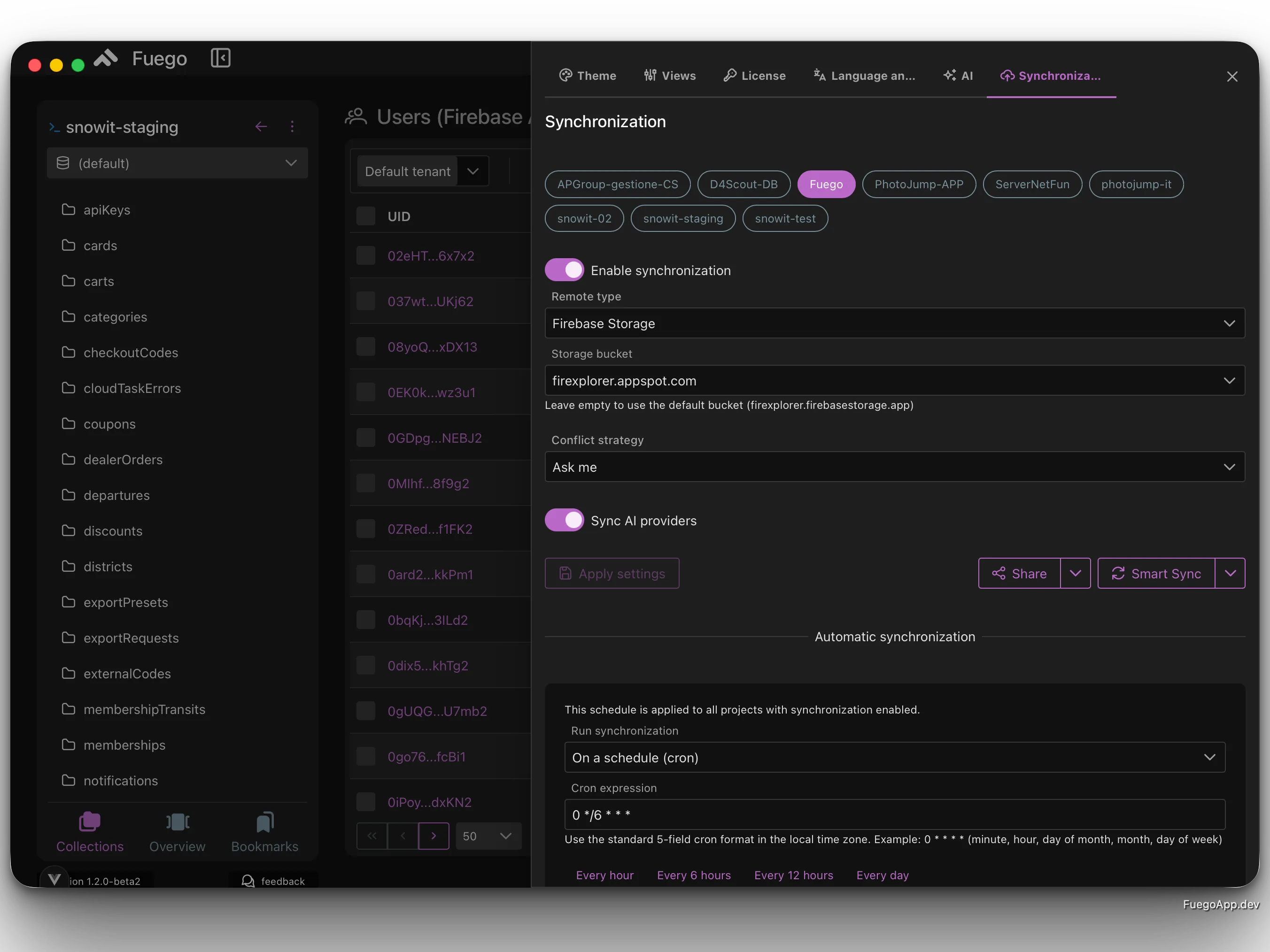
Fuego can synchronize your per-project settings — views, bookmarks, queries, schemas, embedding models, storage configurations, saved scripts and AI providers — across multiple machines. The remote can be either a Firebase Storage bucket or a dedicated Firestore database, and you stay in control of how conflicts are resolved when the same item is changed on two machines.
Open Settings → Synchronization to configure it.
How it works
Synchronization is configured per project. Select a project from the chips at the top of the panel to enable and customize its sync behavior. Each project keeps its own remote target, conflict strategy and AI-provider toggle, while the automatic-run schedule is global and applied to every project that has sync enabled.
Saved custom scripts are synchronized as well. Unlike the other items they are global, not project-scoped, so they are included with every synced project and follow the same conflict handling as queries and bookmarks.
Per-project options
Enable synchronization
Toggle Enable synchronization on to start syncing the selected project. Once enabled, Fuego shows the remote configuration, the conflict strategy and the action buttons.
Remote type
Choose where Fuego stores the synchronized configuration:
- Firebase Storage — stores a single YAML object in a Cloud Storage bucket.
- Firestore — stores the configuration inside a Firestore database, in a dedicated
_fuegocollection.
Storage bucket
When Firebase Storage is selected, you can pick the bucket from the dropdown. Leave the field empty to use the default bucket — typically {projectId}.firebasestorage.app. Use a custom bucket if you prefer to isolate Fuego configuration from your application data.
Firestore database
When Firestore is selected, choose which Firestore database to use. If left empty, the (default) database is used. This is useful when you keep a dedicated database (for example, fuego-config) for application metadata.
Conflict strategy
When both the local and the remote copy of the same item have changed since the last synchronization, Fuego needs to know which one to keep. Choose between:
- Ask me — opens a dialog listing each conflicting item (view, query, bookmark, schema, script, provider, etc.) so you can decide one by one which version to keep.
- Local wins — the local version always overwrites the remote one.
- Remote wins — the remote version always overwrites the local one.
- Last change wins — Fuego detects, per entry, which side changed since the last sync and automatically applies that side. If both sides have changed, it falls back to Ask me for those entries only.
Sync AI providers
When enabled, your AI provider configurations (models, endpoints and the related settings) are included in the sync payload. Keep it off if you want to manage AI providers separately on each machine — for example, when API keys differ between your work and personal setups.
Apply settings
Click Apply settings to persist the configuration above. The button is only enabled when there are unsaved changes.
Actions
The bottom row of the per-project section exposes the main sync actions:
- Share configuration — exports the project configuration as a YAML file named
fuego-{projectId}.ymland opens the OS share sheet, so you can hand it to a teammate or move it to another machine without going through the remote. - Smart Sync — the recommended one-click action. It pulls the latest remote state, merges it with your local one using the configured conflict strategy and pushes the result back. If unresolved conflicts remain, Fuego opens the conflict dialog so you can settle them.
The split-button menus next to each action expose additional operations:
- Upload to server (Push) — overwrites the remote with your local configuration.
- Download from server (Pull) — overwrites your local configuration with the remote one.
- Preview — shows a diff between local and remote (entries to add, update, skip and conflicts) before you decide whether to sync.
- Export configuration / Import configuration — manually save or load a YAML file from disk, independent of the remote.
Automatic synchronization
The Automatic synchronization section at the bottom of the panel is global: the schedule you set there applies to every project that has synchronization enabled.
Run synchronization
Choose when Fuego should run Smart Sync automatically:
- Only manually — never run automatically.
- On app startup — sync once when Fuego launches.
- On app close — sync when Fuego is closing.
- On app startup and close — sync at both events.
- On a schedule (cron) — sync on a recurring schedule.
Running synchronization on app close may delay the shutdown when many changes need to be sent. For more reliable timing, prefer On app startup or On a schedule.
Cron expression
When On a schedule is selected, provide a standard 5-field cron expression evaluated in the local time zone:
minute hour day-of-month month day-of-week
For example, 0 */6 * * * runs every 6 hours on the hour. The quick presets below the field fill in common values:
- Every hour —
0 * * * * - Every 6 hours —
0 */6 * * * - Every 12 hours —
0 */12 * * * - Every day —
0 0 * * *
Schedules that run every minute may cause performance and cost issues depending on the volume of changes. Pick the longest interval that still meets your workflow.
Tips
- Use Last change wins as a low-friction default once you have used Ask me a few times and understood how Fuego detects per-entry changes.
- Keep Sync AI providers off when sharing a configuration with a teammate — only the structural settings (views, bookmarks, queries) will travel, not your API keys.
- Use Share configuration when onboarding a teammate to a project: they get a ready-to-import YAML without needing access to the remote.
Related resources
- Customizing Fuego — themes, views, languages and other UI preferences.
- Firestore Index Management — also uses the sync mechanism to share index definitions between databases.