Projects

Manage multiple Firestore databases and projects

Keep production, staging, development and local emulators side by side. Switch database from the sidebar, create named databases, and copy data and indexes from one environment to another.

Quick answer

Can you manage several Firestore databases at once?

Yes. Besides (default), a Firebase project can hold named Firestore databases, up to 100 per project, each with its own location and edition. SDKs and client libraries connect to (default) unless your code names another database.

Fuego puts every database of every project you add in one app. You switch database from the sidebar, create new ones, copy collections and compare indexes between databases and projects, with local emulators in the same list as the cloud.

Up to 100 per project

A Firebase project can hold up to 100 Firestore databases, and you can ask support to raise the limit (quotas).

(default) unless named

Any database not called (default) is a named database. SDKs and client libraries connect to (default) unless your code names another one (manage databases).

One free database

The free quota covers exactly one database per project, the first one you create. Creating more requires an upgraded billing plan (pricing).

Set up one by one

Each database gets its own location and edition, Standard or Enterprise, when you create it, and you deploy security rules to each database separately (multiple databases).

What Fuego adds

Multi-database features in Fuego

Every database of a project

When you add a project, Fuego reads its database list from Google Cloud. If the list cannot be loaded, you type the database IDs yourself.

Database picker

Switch database from the picker under the project name, or with ⌘⇧D (Ctrl+Shift+D). It shows each database's mode and location and filters the list as you type.

Create named databases

New database creates a database in Google Cloud with the ID, location and edition you choose, Standard or Enterprise, then switches to it.

Production and read-only flags

Tag a project as production to give it a PROD badge in the sidebar and wherever you pick a target project and database. Readonly blocks writes from Fuego to all its databases.

Copy between environments

Copy a collection, filtered by a query if needed, or only the selected documents to any project and database you have added, subcollections included.

Compare across databases

Compare the composite indexes of two databases, even in different projects, and add the missing ones with a click. Compare two documents side by side, such as an emulator copy and its cloud original.

Emulators next to the cloud

Emulators running on the default ports are found at startup, or with ⌘D (Ctrl+D). Databases you add to an emulator are remembered for the next launch.

A window per project

Middle-click or ⌘/Ctrl-click a project to open it in its own window. An edit made in one window shows up in every window that displays the same document.

Search every database

Global search looks up document IDs, collections, Auth users and Storage paths in every database of the projects you select.

Databases show up elsewhere in the app too: a saved query can target several projects and databases, a dashboard widget can read from a specific database, and settings sync shares each project's views, bookmarks and queries between machines.

Workflow

How to manage multiple Firestore databases with Fuego

  1. Add a project

    Click Add project and choose how to sign in: Continue with Google, GCloud CLI (ADC), Import serviceAccount.json or Connect to Emulator.

  2. Pick the Firebase project

    Enter the Firebase project ID or select it from the list, then click Next.

  3. Check its databases

    Fuego lists the project's databases. If it cannot read the list, click Add database and type each database ID.

  4. Flag the environment

    Turn on Readonly or Tag as production DB, set the project name and a shortcut, then click Confirm.

  5. Switch database

    Open the database picker under the project name in the sidebar, or press ⌘⇧D (Ctrl+Shift+D), and pick a database.

  6. Add the other environments

    Repeat for staging, development and emulators. ⌘1 to ⌘9 (Ctrl+1 to Ctrl+9) open projects by the shortcut position you gave them.
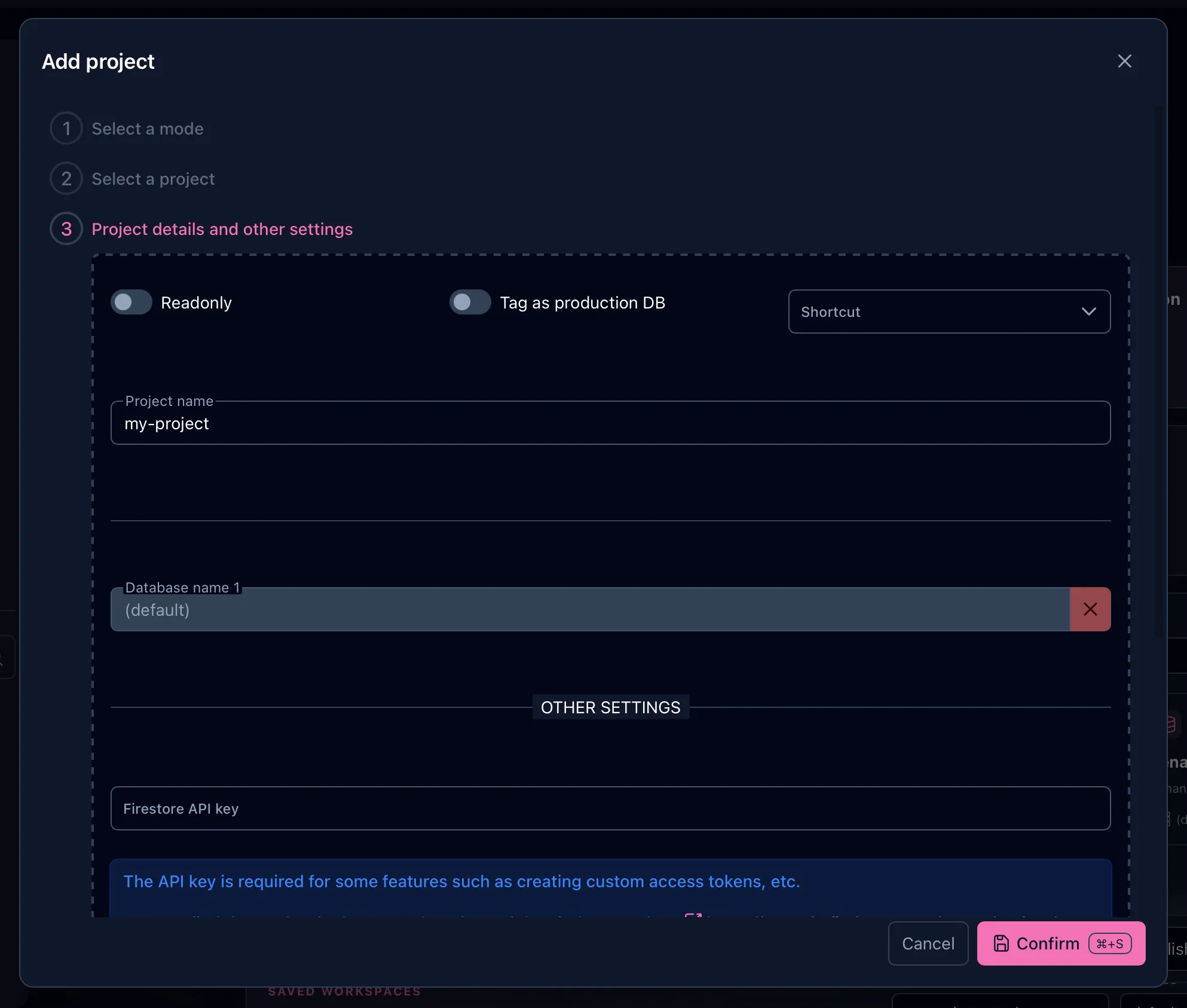
Fuego's Add project dialog at step 3: the Readonly and Tag as production DB switches, the shortcut selector, the project name and the list of databases to connect, starting with (default)
Step 3 of Add project: name the project, flag it as read-only or production, and check the databases to connect.

Use cases

Common multi-database setups

Production, staging, development

Add one project per environment, tag production, and turn on Readonly where you only need to look at the data.

Several databases in one project

Keep a logs or analytics database next to (default) and switch between them without leaving the project.

Real data in the emulator

Copy a collection from a cloud project into the emulator, test against it, then compare an emulator document with the cloud original.

Indexes from staging to production

Create composite indexes on staging, then open compare mode and add the ones production is missing before you deploy.

Good to know

Limits and things to know

In Firestore

  • Your code chooses the database. Apps use (default) unless they pass a database ID, and Cloud Functions (1st gen) do not support named databases.
  • Each database is set up on its own. Security rules are deployed to each database separately, and only one database per project gets the free quota.

In Fuego

  • Flags are per project. Readonly and Tag as production DB apply to every database of that project.
  • Emulators start with (default). Fuego cannot read an emulator's database list, so add the others by name from the project details. See Emulators.
  • MongoDB compatibility. Fuego uses the Firestore API, which is turned off by default on MongoDB-compatible databases. Fuego tries to turn it on when it creates one.
  • Also in the terminal. fuego project databases <project> lists a project's databases, and -d or FUEGO_DATABASE picks one for any command. See the command line docs.
  • Plans. The Free plan connects one project with all its databases. Unlimited projects, emulators, and copying or moving data between databases come with the Individual, Team and Lifetime Deal plans. Compare them on the pricing page.

FAQ

Frequently asked questions

How many databases can a Firestore project have?

Up to 100 per project, and you can contact support to request more. Only one of them, the first one you create, is covered by the free quota; creating more requires an upgraded billing plan.

How do I switch between Firestore databases in Fuego?

Use the database picker under the project name in the sidebar, or press ⌘⇧D on macOS (Ctrl+Shift+D on Windows and Linux). On the project home and in the data view, the command palette also offers a Switch database command for each database.

Can I create a new Firestore database from Fuego?

Yes. Choose New database in the database picker, enter an ID, pick a location and the Standard or Enterprise edition, and confirm. Fuego creates it in Google Cloud and adds it to the project. Beyond the first database, Firestore requires an upgraded billing plan.

Can I copy data between Firestore databases or projects?

Yes. Copy collection to and Copy documents to send data to any project and database you have added, subcollections included, and a collection copy can be filtered by a query. Move collection relocates a collection the same way. Read-only projects cannot be chosen as a destination.

Does Fuego support named databases in the Firestore emulator?

Yes. An emulator project starts with the (default) database; add other databases by name from the project details. Fuego remembers them and restores them the next time it finds that emulator.

How does Fuego help protect production databases?

Tag a project as production and it carries a PROD badge in the sidebar and wherever you pick a target project and database. Turn on Readonly to block writes from Fuego to all of its databases. The AI assistant never writes to projects tagged as production.

Is multi-database support included in the Free plan?

Yes. The Free plan connects one Firebase project with all its databases. Unlimited projects, emulators, and copying or moving data between databases come with the Individual, Team and Lifetime Deal plans. The Individual plan starts with a 14-day free trial.

Get started

All your Firestore databases in one app

Download Fuego for macOS, Windows or Linux. The Free plan connects one project with all its databases; the Individual plan adds unlimited projects and emulators, with a 14-day free trial.