7-day window
With PITR enabled, Firestore keeps past versions of your documents for 7 days. With PITR disabled, only the last hour is available.

Data safety
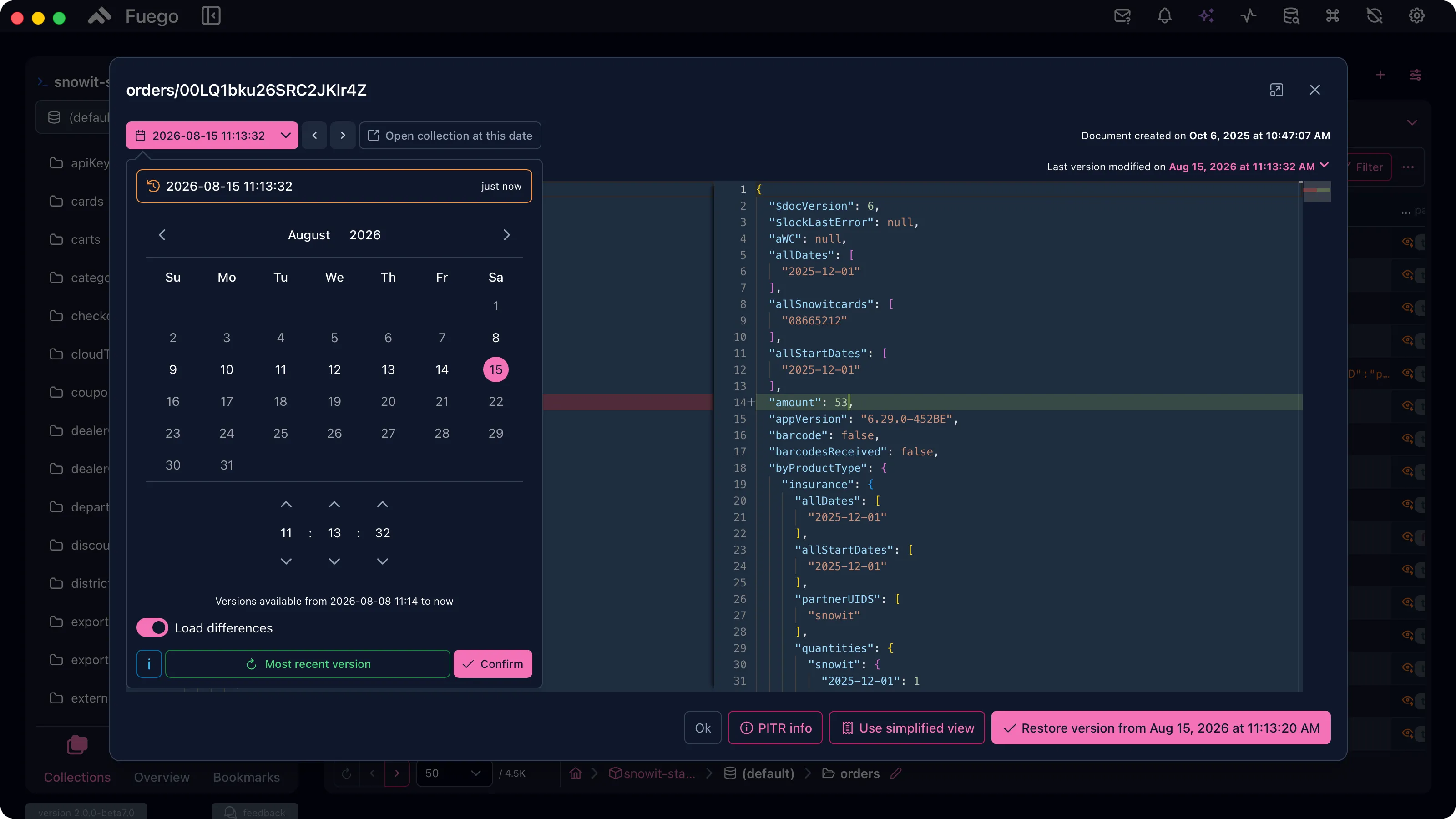
Browse the history of any document, compare past versions with the current one, and restore a single document or a whole set of query results to how they were minutes or days ago.
Quick answer
Firestore keeps past versions of your documents through point-in-time recovery (PITR): the last hour on every database, and 7 days at one version per minute once you enable PITR. Natively, you read those versions with a server client library or the REST API at a chosen read time and write the data back yourself, or you clone the whole database at a timestamp.
Fuego puts the same history in a window: pick a moment, compare it with the current document, and restore one document or many in a few clicks.
Sources: Firestore documentation on point-in-time recovery and using PITR.
What Fuego adds
A read time is a setting of the query itself, so it combines with filters and sorting in the query builder. Restores of many documents run as background tasks, like the other bulk operations.
Workflow
There are two ways: one document from its context menu, or many documents from a query at a read time.
Open the collection in the database viewer and locate the document you want to restore.
Right-click the document, or open its context menu, and choose PITR. A history panel shows the available versions.
Select a timestamp to view that version and compare it with the current document.
Click Restore version and confirm. The document reverts to the state it had at that moment.
Open the collection or query and set its read time with the clock button in the toolbar. The table shows the documents as they existed at that moment.
Turn on Load differences to highlight what changed, and compare each document with its current version.
Select the documents you want to bring back, or keep the whole result set.
Open Actions, choose Restore (PITR) for all results or only the selected documents, and confirm.
Both flows are covered step by step, with animations, in the Point in Time Recovery docs and in the PITR walkthrough on the blog.
Use cases
Good to know
fuego doc get <path> --at <time> prints a document as it was at a past moment. See the command line docs.FAQ
With PITR enabled, Firestore keeps one version per minute for 7 days; with PITR disabled, only the last hour. Right after you enable PITR, the earliest readable version is one hour before you enabled it, and the full 7-day window builds up over the following week.
Not for the last hour, which every Firestore database keeps. To go back further, enable PITR on the database under Disaster Recovery in the Google Cloud console, or with gcloud. When PITR is off, Fuego's read-time picker tells you and links to the database's Disaster Recovery settings in the Firebase console. PITR storage has no free tier, so billing must be enabled.
Yes, if it was deleted within the recovery window. Set a read time from before the deletion and the document appears in the results as it was then. Select it and restore it, and Fuego writes it back to the same path.
Fuego restores documents in place: one document, a selection, or all the results of a read-time query. To recreate a whole database as it was at a given minute, Firestore clones it into a new database with the gcloud firestore databases clone command.
Yes, since Fuego 2.2: document history, version comparison, restores and read-time queries all work on emulator projects. History starts when the emulator starts, and Open collection at this date is not offered there.
Point-in-time recovery is included in the Individual, Team and Lifetime Deal plans, and in the Individual plan's 14-day free trial. The Free plan does not include it.
Get started
Download Fuego, connect your project and open any document's history. Point-in-time recovery is included in the paid plans and in the 14-day free trial.