
Fuego 2.2: a command line, tree previews, and PITR on the emulator
Fuego 2.2 brings Fuego to the terminal with the fuego command, shows what is inside collapsed documents in the tree view, lets you pick the columns of the Authentication user list, adds point-in-time recovery to the emulator and updates the AI model catalog.
Fuego 2.1 was about the daily loop inside the app: exploring, filtering, transforming and repeating. Fuego 2.2 takes a step outside of it.
The headline is a command line tool: the same Fuego, with the same projects and settings, usable from a terminal, a script or a CI job. Alongside it, the tree view learns to show what is inside a document before you expand it, the Authentication user list gets the column controls the Firestore table already had, point-in-time recovery comes to the emulator, and the AI assistant gets the latest models.
Here’s what’s new.
Fuego in your terminal
Some jobs are faster to type than to click: checking one field on one
document, exporting a collection before a migration, looking up a user from a
support ticket, or running the same query every morning from a script. Until
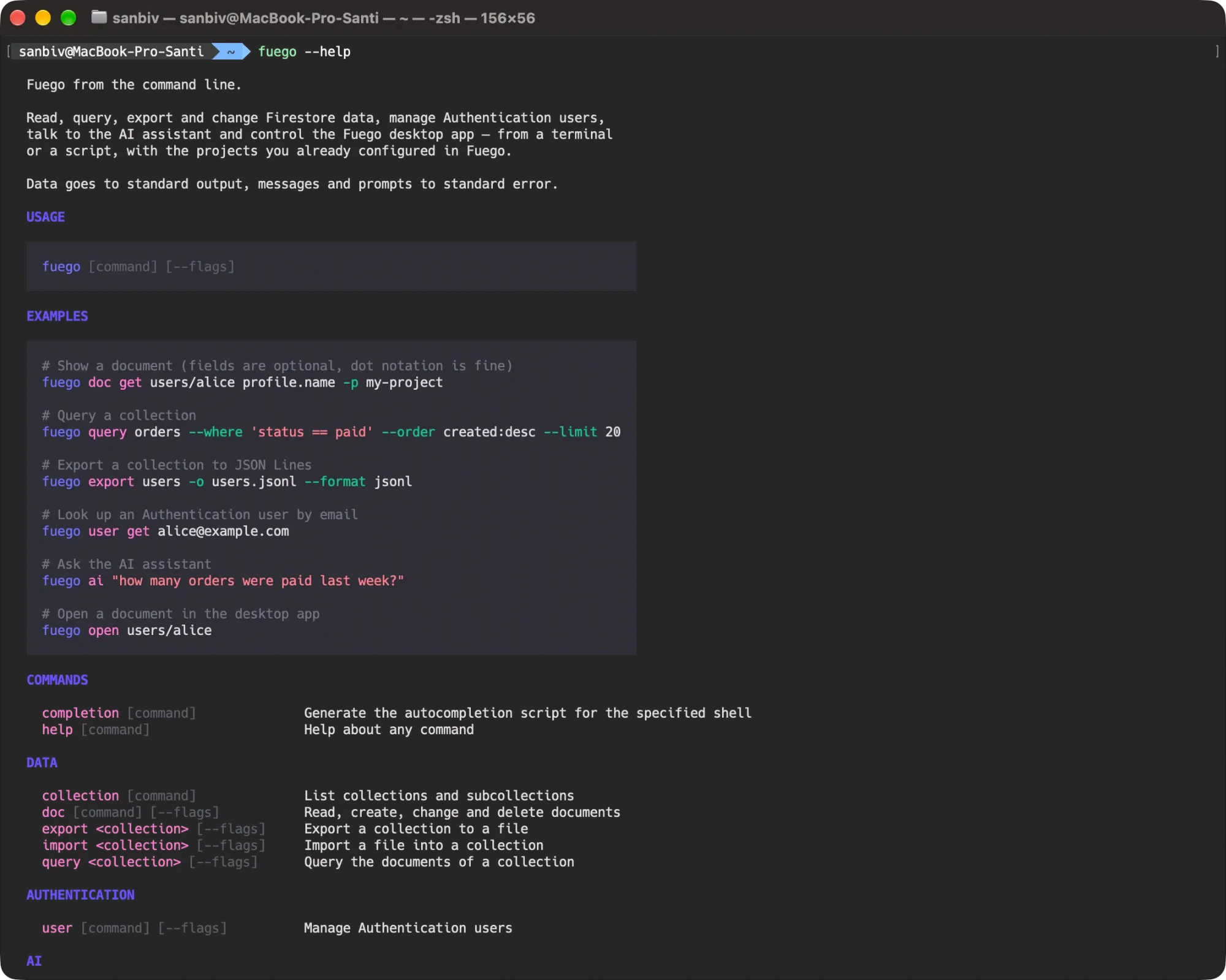
now each of those meant opening the app. With 2.2 there is a fuego command.
fuego doc get users/alice profile.name -p my-project
fuego query orders --where 'status == paid' --order created:desc --limit 20
fuego export users -o users.jsonl
fuego user get alice@example.com
fuego ai "how many orders were paid last week?"
fuego open users/alice
It is not a separate product with its own setup. fuego is the Fuego
application started with a command instead of a double-click, so it uses
the projects, credentials, license and settings you already configured in
the app. There is nothing to sign in to twice, and a project marked as
read-only or production in Fuego stays that way on the command line. It works
with or without the desktop app open: the few commands that drive the app
itself, like opening a resource in a window, start it when it isn’t running.
What you can do with it
- Documents — read a whole document or just the fields you name, list ids
and collections, and create, set, update or delete documents. Values keep
their Firestore types: timestamps, references, geopoints and bytes
round-trip, so
fuego doc get users/alice --json | fuego doc set users/bobcopies a document without losing anything. - Queries —
--where,--order,--select,--limitand--offsetwith the same operators as the query builder, collection groups with--group, a plain count with--count, and pipeline queries on Enterprise edition databases. - Export and import — the same defaults as the app’s dialogs, in JSON,
JSON Lines, CSV and YAML, with a
--dry-runthat tells you what an import would create and update before it writes anything. - Authentication users — look up users by uid, email address or phone
number; create, update, disable, enable, revoke and delete them; edit custom
claims; mint custom and ID tokens; and generate password-reset, verification
and sign-in links. Multi-tenant projects take
--tenant. - Opening things in Fuego —
fuego openturns a document, collection, Storage path, user or query into afuego://link and opens it in the app, or prints the link with--printso you can paste it into a ticket or a pull request. - MCP — start, stop and inspect the MCP server built into the app, or run
the same tools straight from the terminal with
fuego mcp serve, without the desktop app. Adding Fuego to Claude Code becomes a single line:claude mcp add fuego -- fuego mcp serve. - The AI assistant — ask a one-off question or open an interactive chat, with the same tools, saved conversations and safety rules as in the app: writes stay off unless you enabled them in Settings → AI, a production project is never written, and every write is confirmed first.
Made for scripts
The command line follows the conventions that make a tool safe to automate.
Standard output carries data only: documents, ids, tables, JSON. Progress,
prompts and warnings go to standard error, so fuego … | jq and
fuego … > file do what you expect. --json gives you machine-readable
results and errors, queries and user lists can stream JSON Lines, and exit codes tell a script what went wrong:
a missing document, a confirmation that needed --yes, a feature your plan
doesn’t include. Flags that contradict each other are refused rather than
quietly ignored, and shell completion is built in for zsh, bash, fish and
PowerShell.
Install it
Choose Help ▸ Install Command Line Tool… in the app menu, or click
Install on the banner that the Home page shows until the command is
installed. On a machine you reach over SSH, fuego cli install does the same
from the terminal. The command uses the license activated in the app, and plan
features apply as they do in the app: export, import, MCP, point-in-time reads
and multi-tenant commands need a plan that includes them.
See inside collapsed documents
The tree view is the quickest way to look at nested data, but a list of collapsed documents used to be a list of ids. Unless your ids are meaningful, finding the right document meant expanding them one at a time.
Collapsed documents now show a preview of their contents in the Value column, so you can tell them apart at a glance.
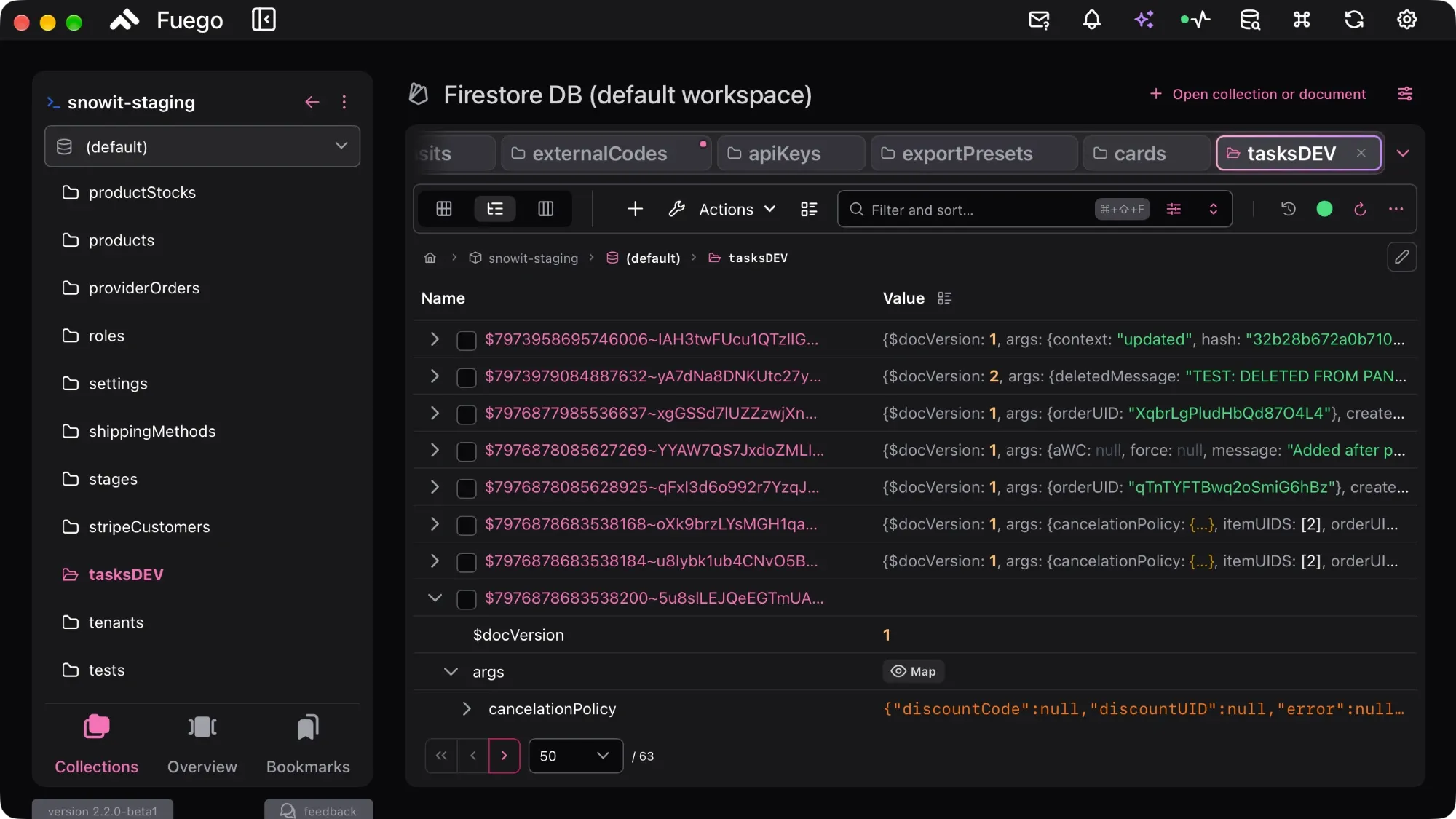
There are four modes:
- None — the Value column stays empty, as before.
- Whole document — a compact inline object with the document’s fields.
- Selected fields — the columns of the table view, with the fields used by the query’s sort and filters first, so the preview shows what you are searching on.
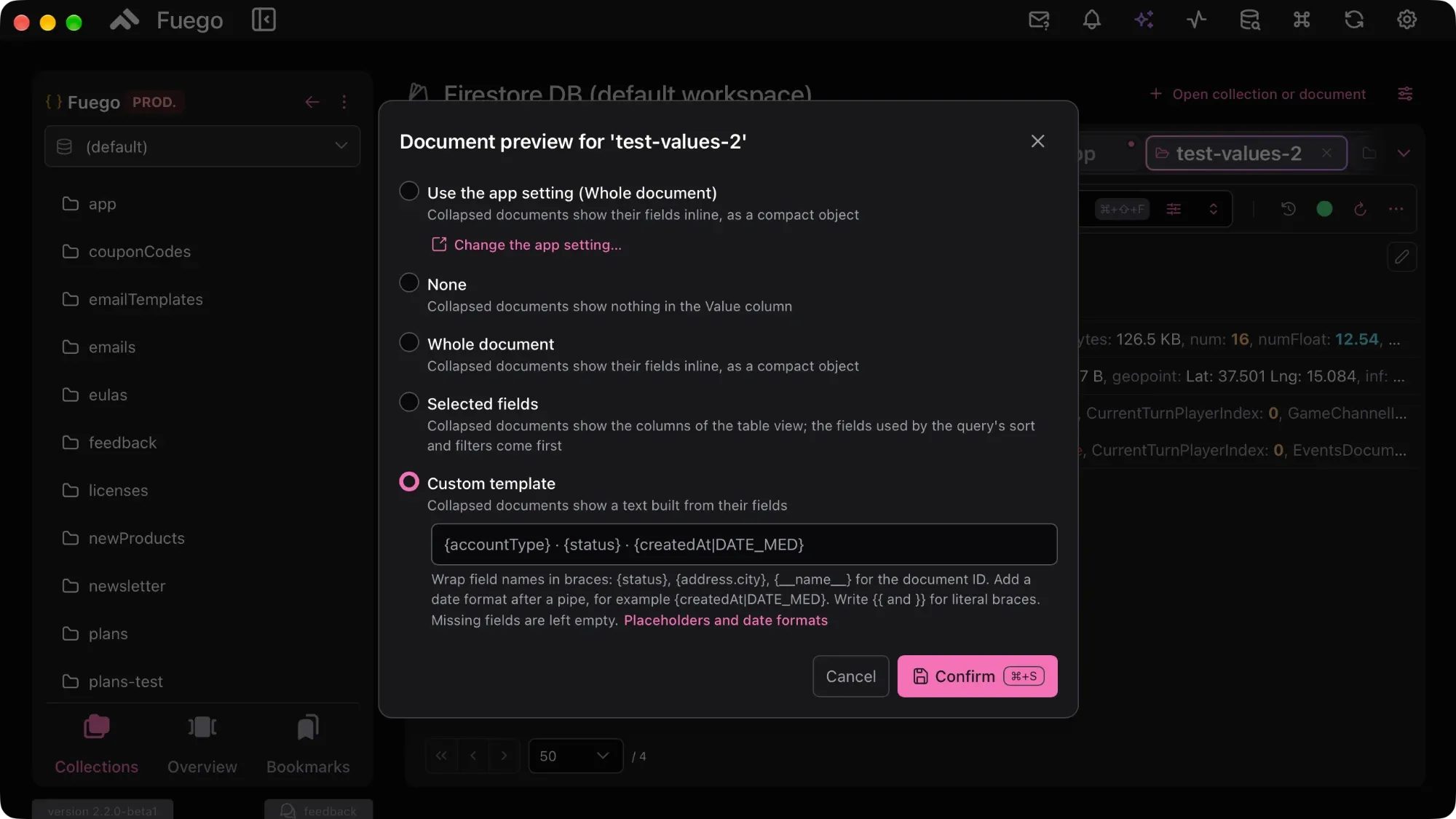
- Custom template — a line of text built from the document’s fields, with
optional date formats:
{accountType} · {status} · {createdAt|DATE_MED}renders asuser · active · Sep 9, 2026. While you type,{suggests the collection’s field names and|the date formats.
The app-wide mode lives in Settings → General → Tree view, and any
collection can use its own instead: from the button in the Value column
header, the Document preview button in the toolbar, or the collection’s
context menu. A setting on a subcollection applies to every parent document of
the same path, like users/*/messages. Anonymized values stay masked in the
preview, and clicking a preview opens the document (⌘-click or a middle click
opens it in a new tab).
The Name column has been reworked too. Instead of a fixed width, it now fits the keys you are looking at: it grows when you expand a node with longer or deeper field names and shrinks back when you collapse it, always leaving at least half of the table to the values. Drag the right edge of its header to set a width yourself. That width is remembered per collection, and a double click on the edge brings back the automatic width.
Your columns in the Authentication user list
The Authentication user list had a fixed set of columns. It now works like the Firestore table view:
- Columns in the toolbar opens a picker where you tick the columns to show and drag them into the order you want, with Restore default to go back.
- Drag a column header onto another one to move it.
- Right-click a header to hide or move a column, open the picker or restore the default layout.
Six new optional columns come with it: Email, Display name, Phone number, Last active, Disabled and Tokens valid after (sessions started before that date are no longer valid, for example after a revoke). The UID always stays first, and your layout applies to every project and tenant.
Point-in-time recovery on the emulator
Point-in-time recovery used to be for cloud databases only. In 2.2, projects connected to the Firestore emulator support document PITR too: open a document’s history, compare its versions, restore one, and run queries at a read time.
That makes the emulator a safe place to rehearse a restore before you ever need one on production, or to look at your data as it was a few minutes ago while you develop. Two limits come from the emulator itself. History starts when the emulator starts, so earlier versions, including those of imported data, are not available. Counts and subcollection listings always reflect the current data, which is why Open collection at this date isn’t offered on the emulator.
New AI models
The AI assistant’s model catalog is up to date, with GPT-6 (Sol and Luna), Claude Opus 5.5, Gemini 3.8 Flash, Grok 4.7 and DeepSeek V4.1 Flash, among others. When a provider retires a model, Fuego now replaces it with its successor in your existing provider configurations. A default model saved months ago won’t suddenly start failing.
Fixes
- Global Search: queries saved with earlier versions of Fuego returned no results on any collection. They run again, and when a search can’t start (the query or project is gone, or another search is already running, perhaps in another window) Global Search now tells you why instead of showing “No results”.
- Comparing emulator and cloud documents: when an emulator shared its Firebase project id with a cloud project, the emulator document was read from the cloud project, and two documents with the same path were mistaken for each other in the context menu and the compare markers.
- Multiple windows: closing the main window while other windows were open
ran the app’s shutdown tasks and left the remaining windows without license,
update,
.fuegofile and background task handling. One of the remaining windows now takes over as the main one. - Boolean values now update their color right after an edit, instead of keeping the previous value’s color until a reload.
Update now
Fuego 2.2 is available today. Download it from
fuegoapp.dev or update from within the app,
then install the command line tool from the Help menu and give
fuego --help a try.
If something doesn’t work the way you expect, from the app or from a script, tell us at support@fuegoapp.dev.
Useful resources: